Installation with Apache Tomcat
Install Java and Apache Tomcat, deploy the ISPICIO_E web application and connect it to the PostgreSQL database.
On this page
Requirements
- Java 25 or newer and Apache Tomcat 11 or newer for ISPICIO_E 2.1.1.0.
- The PostgreSQL database is set up, see Set up the database.
- The SAP system is prepared, see Preparations in SAP.
- You have downloaded ISPICIO_E from the Downloads page and unpacked the ZIP archive. It contains the web application as the WAR file
e2022.war.
The steps describe the installation on Windows. For Linux, this page only contains the file for the database connection.
Install Java
-
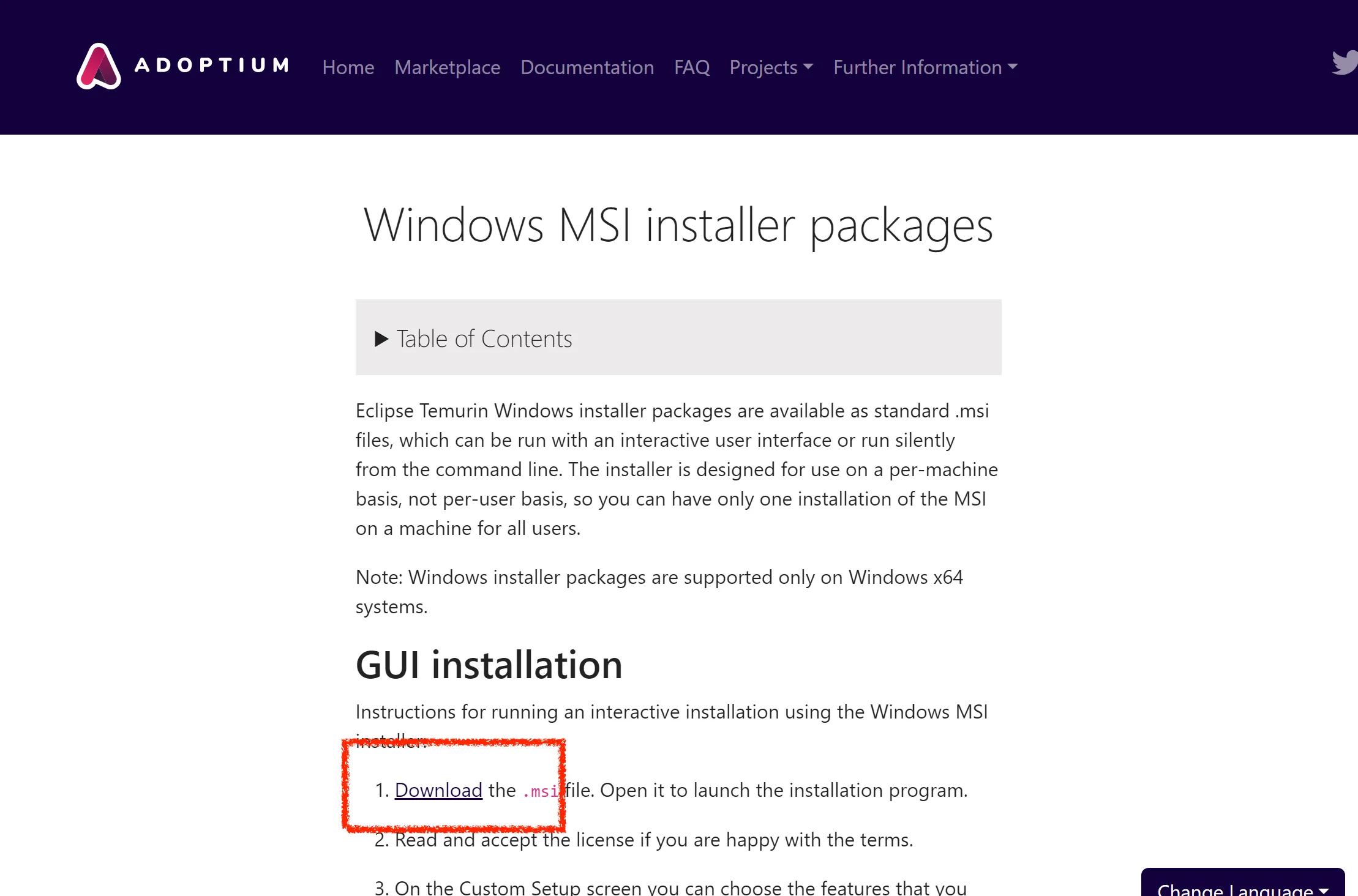
Open the Adoptium page Windows MSI installer packages and click Download.
-
On the release page, select your operating system and, under Version, Java 25 or newer. Download the
.msifile.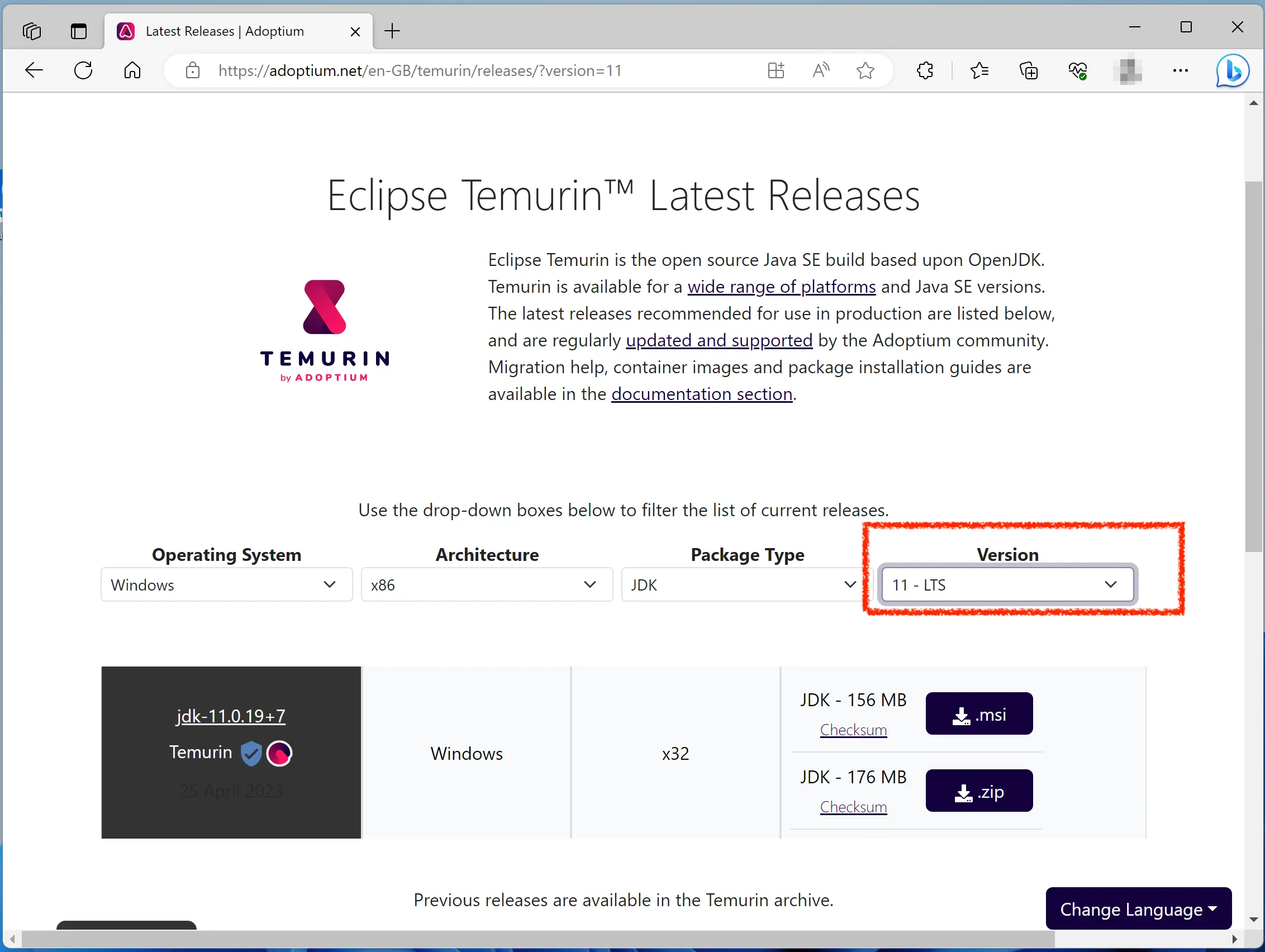
-
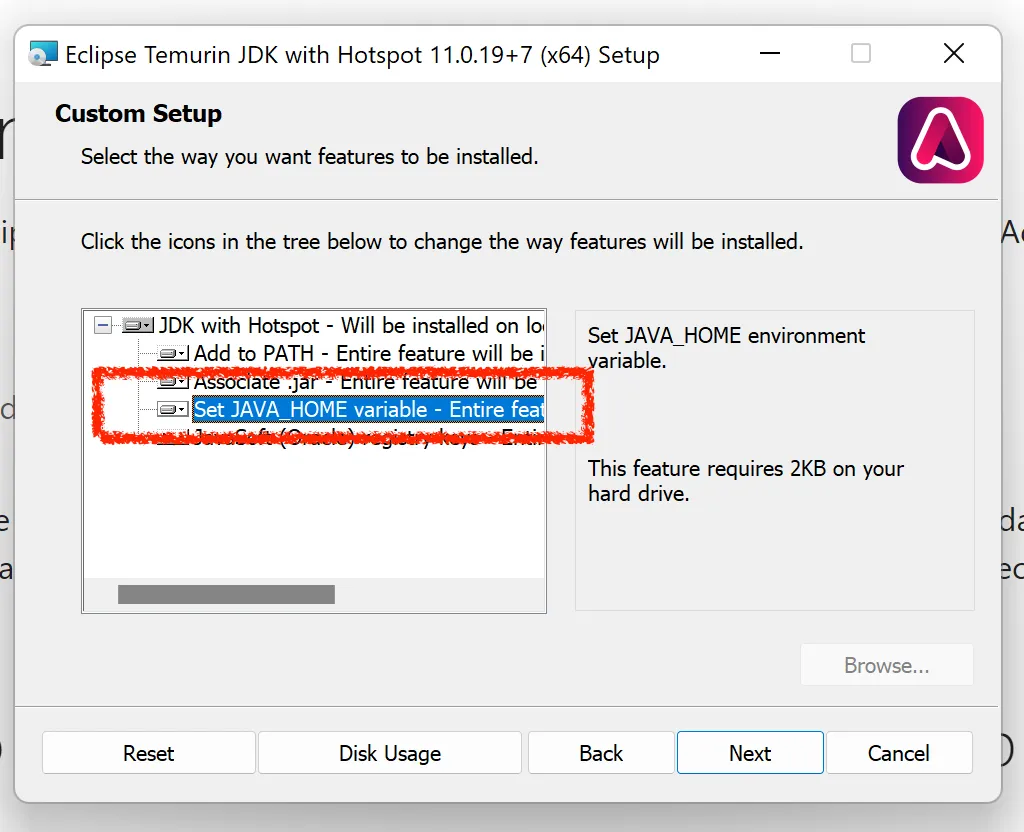
Run the installer. On the Custom Setup page, enable the feature Set JAVA_HOME variable.
-
Open a terminal and check the installation:
java --version
Install Apache Tomcat
-
Download the Windows Service Installer from the official website: Apache Tomcat 11 Software Downloads.
-
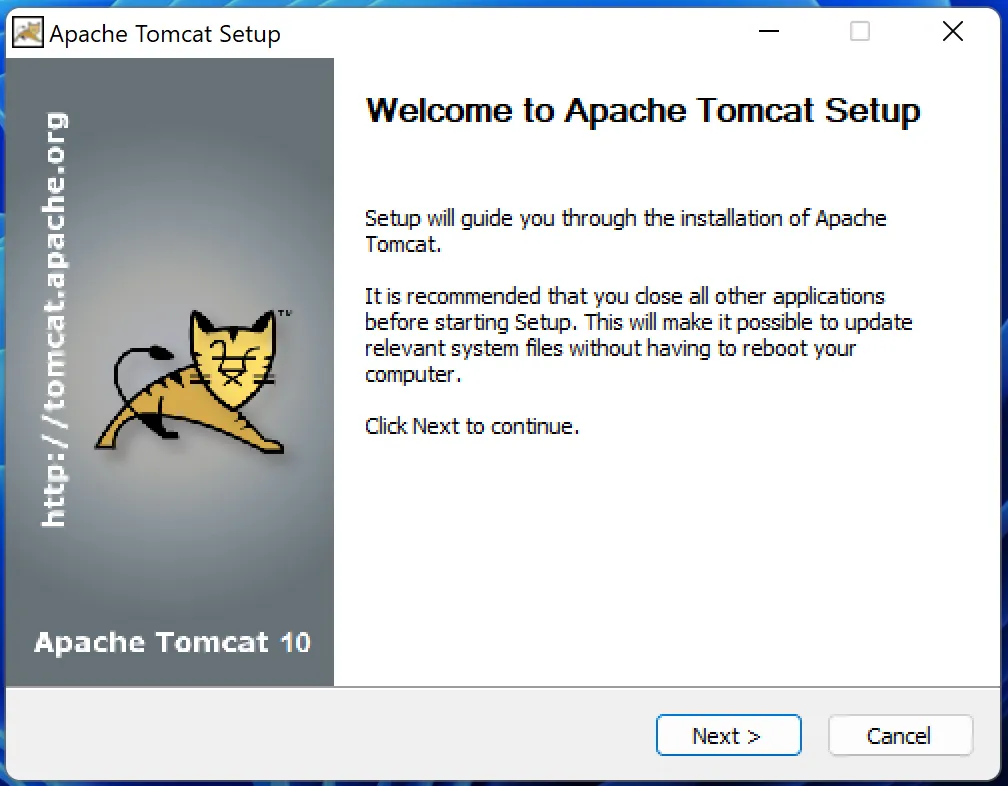
Run the installer and click Next >.
-
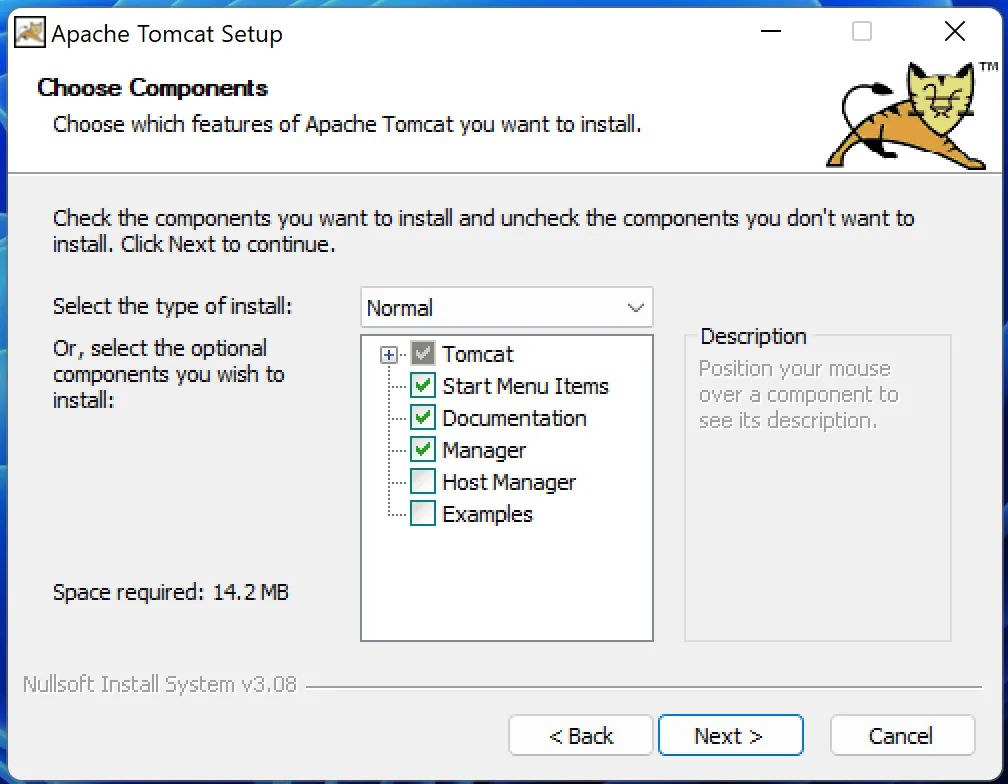
On the Choose Components page, select the components. The screenshot shows the install type Normal with Start Menu Items, Documentation and Manager.
-
On the Configuration page, specify the port in HTTP/1.1 Connector Port. The default is
8080. If you want to use the Tomcat Manager, also enter a user name and password under Tomcat Administrator Login.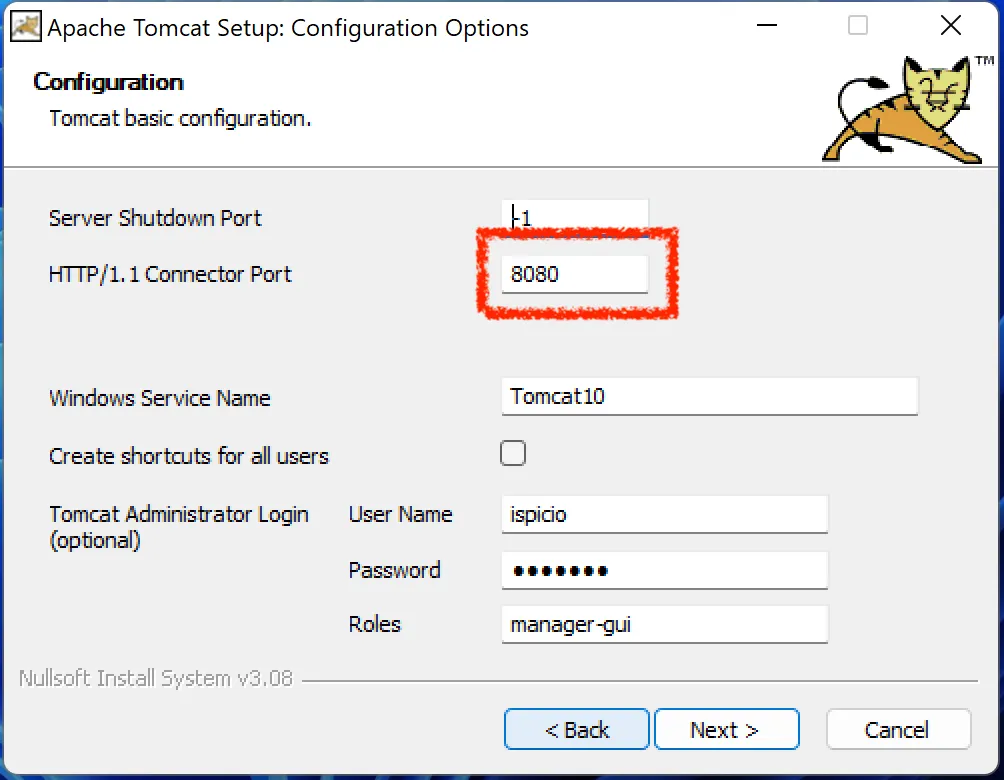
-
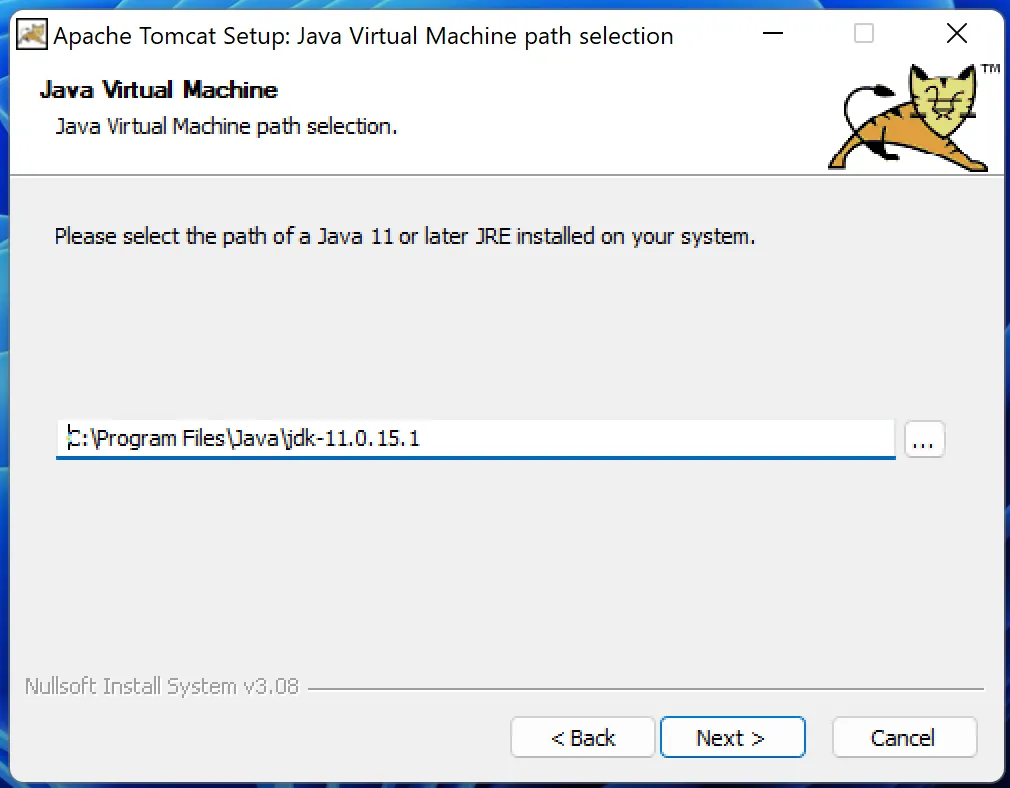
On the Java Virtual Machine page, select the folder of the Java installation from the previous section.
-
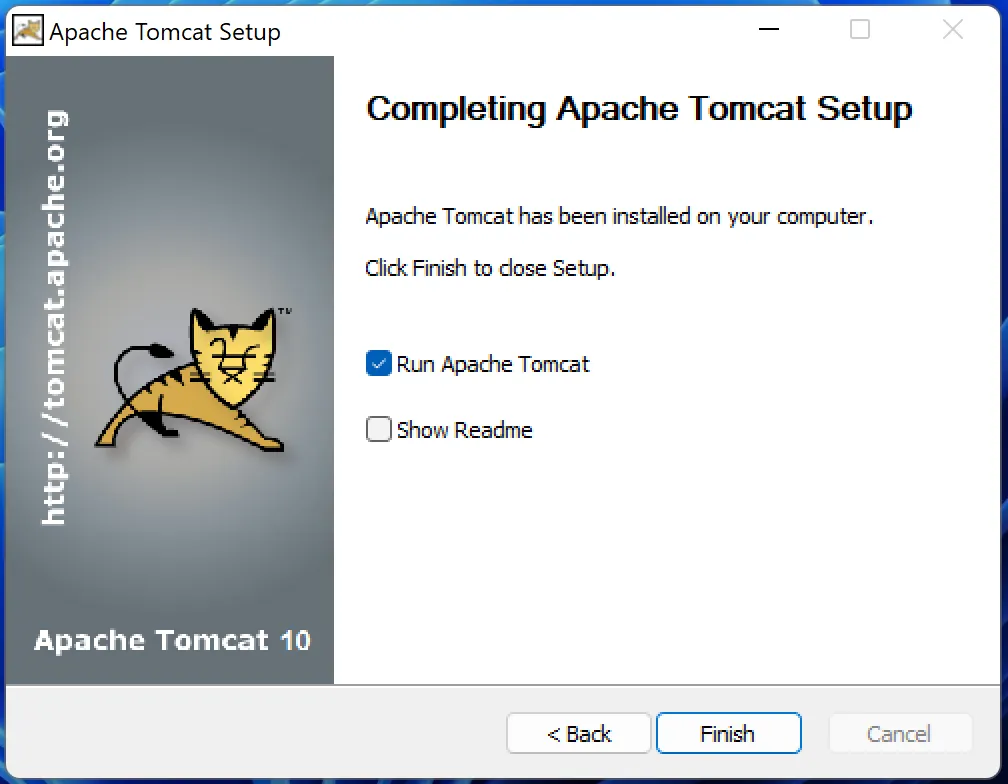
On the last page, leave Run Apache Tomcat selected and click Finish. Tomcat starts.
Deploy ISPICIO_E
-
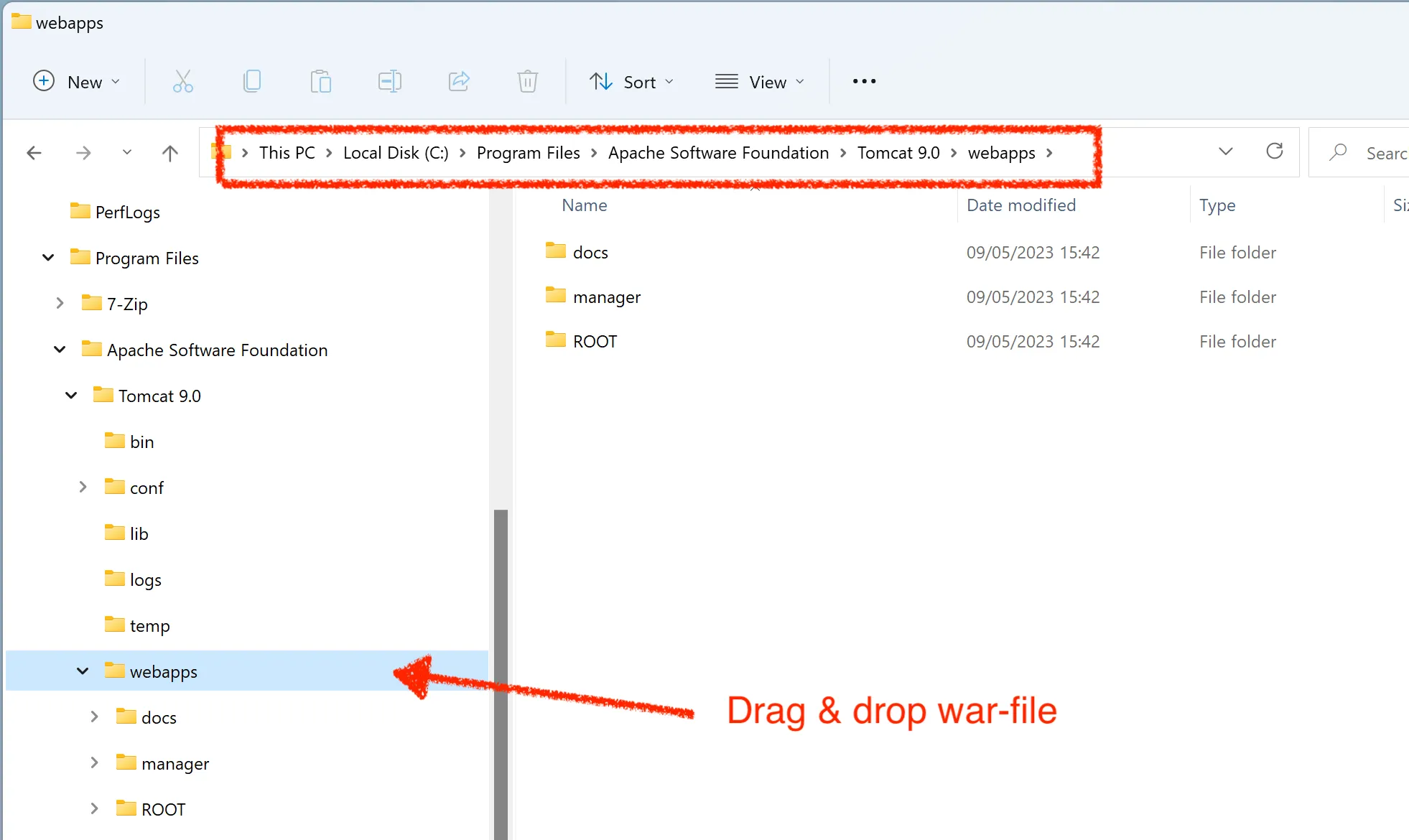
Open the folder
webappsof your Tomcat installation, for exampleC:\Program Files\Apache Software Foundation\Tomcat 9.0\webapps. -
Copy the WAR file into this folder, for example by drag and drop.
Connect to the database
ISPICIO_E reads the database connection from environment variables. You set them in a file in the Tomcat folder bin.
-
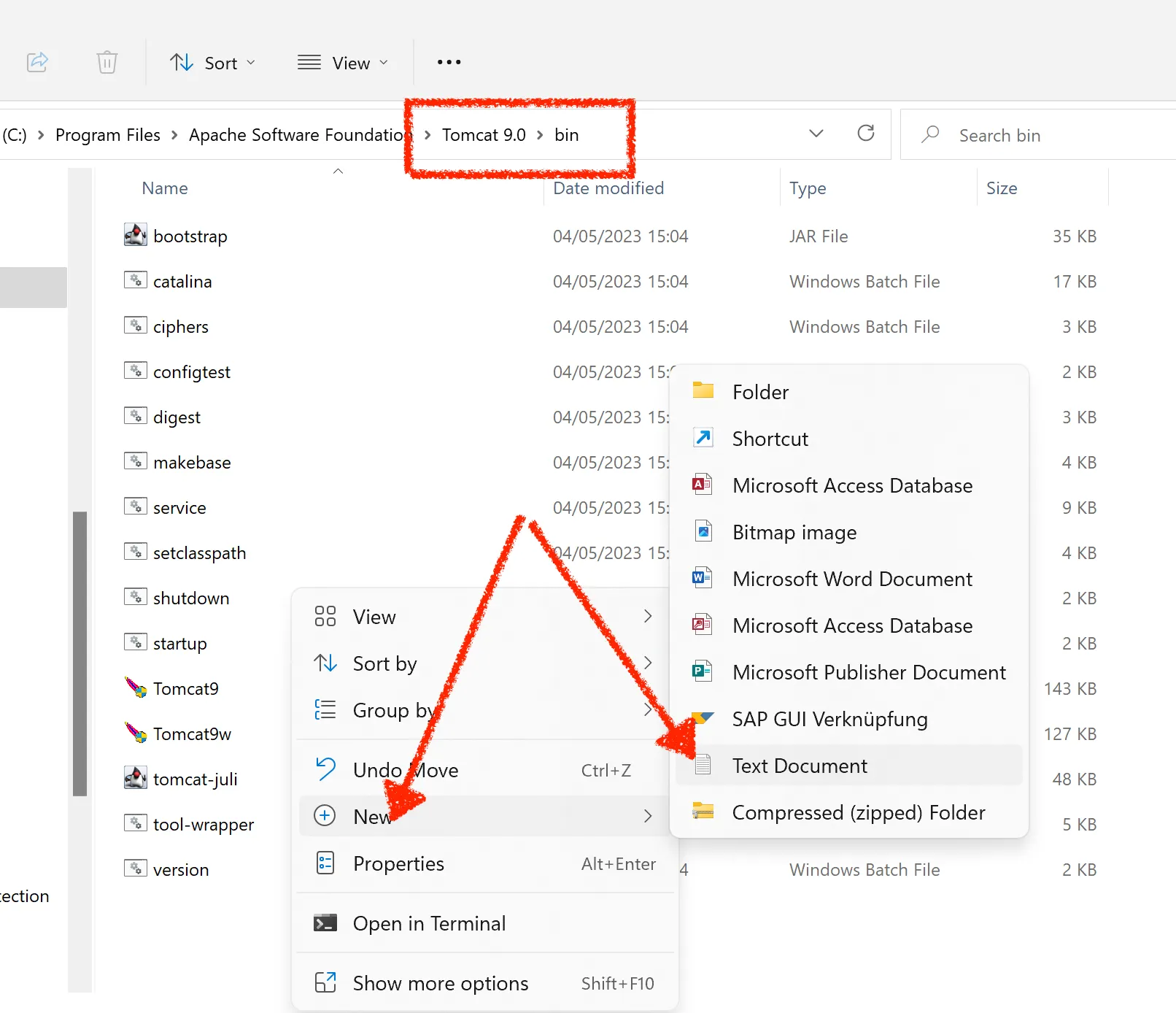
Open the folder
binof your Tomcat installation, for exampleC:\Program Files\Apache Software Foundation\Tomcat 9.0\bin. -
Create a new text file: right-click and choose New > Text Document.
-
Enter the following lines, depending on your operating system. Adapt the values to your database, in particular user and password.
Windows:
set ISPE_DB_HOST=localhost
set ISPE_DB_PORT=5432
set ISPE_DB_NAME=ispe
set ISPE_DB_USER=postgres
set ISPE_DB_PASSWORD=ispicio
Linux:
export ISPE_DB_HOST=localhost export ISPE_DB_PORT=5432 export ISPE_DB_NAME=ispe export ISPE_DB_USER=postgres export ISPE_DB_PASSWORD=ispicio -
Save the file and change its name and file type:
- Windows:
setenv.bat - Linux:
setenv.sh
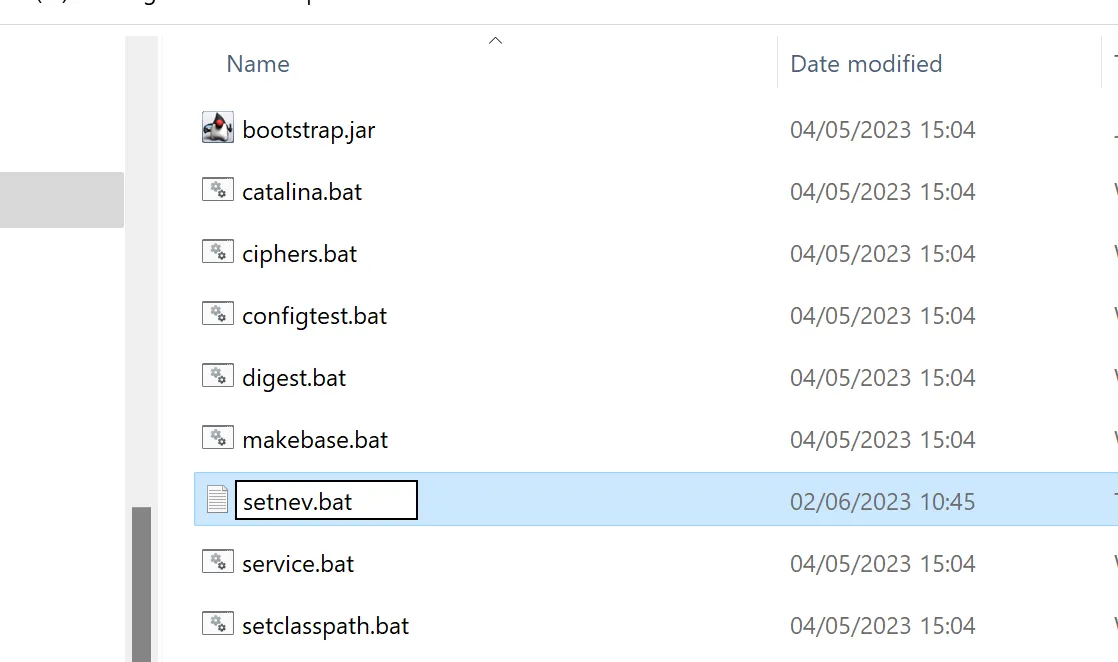
The file name must be exactly
setenv.batorsetenv.sh.On Linux, the file must also be executable, see Upgrade from e2016.
- Windows:
-
Restart Tomcat.
Next step
Tomcat makes the application available under the name of the WAR file. With e2022.war and port 8080, you open ISPICIO_E in the browser at localhost:8080/e2022. The first login and the setup are described in Admin.