Set up the database
Install PostgreSQL and create the database for ISPICIO_E. You need it for an installation on Apache Tomcat; for Docker it is recommended in production.
On this page
ISPICIO_E stores its data in a PostgreSQL database. If you install ISPICIO_E on Apache Tomcat, you need to set up this database yourself. If you use Docker, a separate database is optional but recommended for production use.
Supported databases
| Database | Version |
|---|---|
| PostgreSQL | 19 or newer |
Install PostgreSQL
The steps describe the installation on Windows.
-
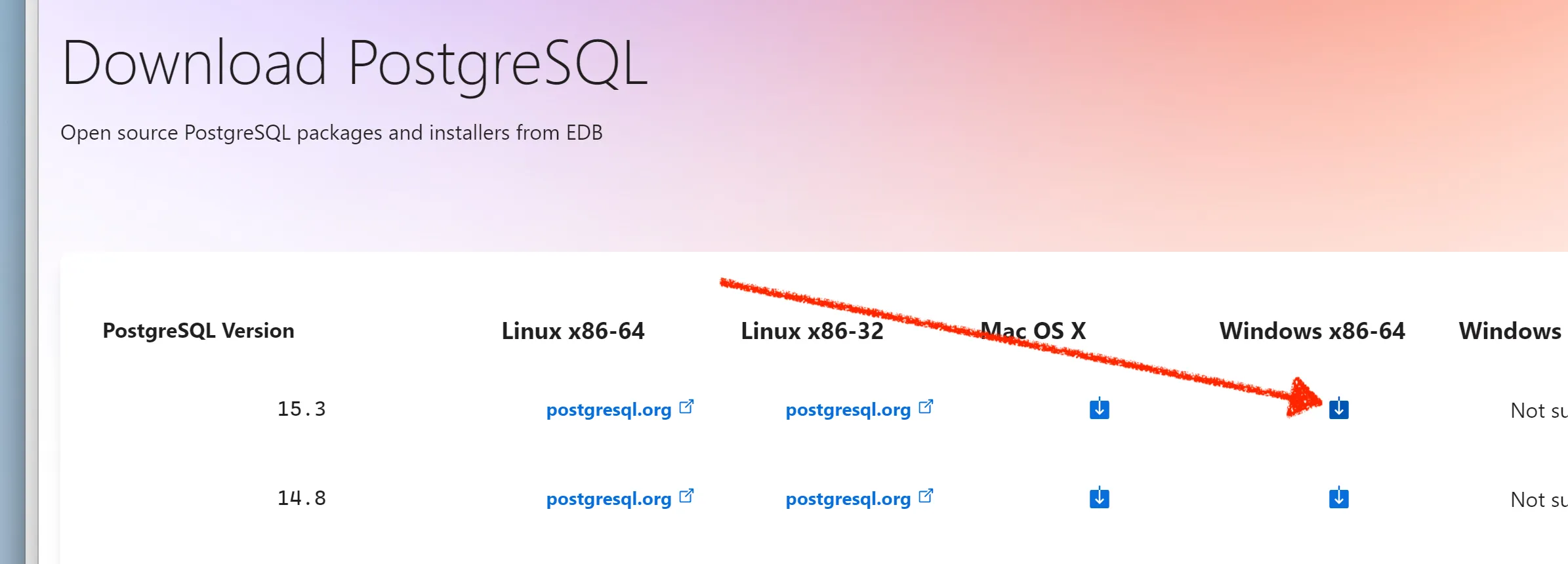
Download the installer, for example from PostgreSQL: Windows installers. On the download page, click the download icon for your version in the Windows x86-64 column.
-
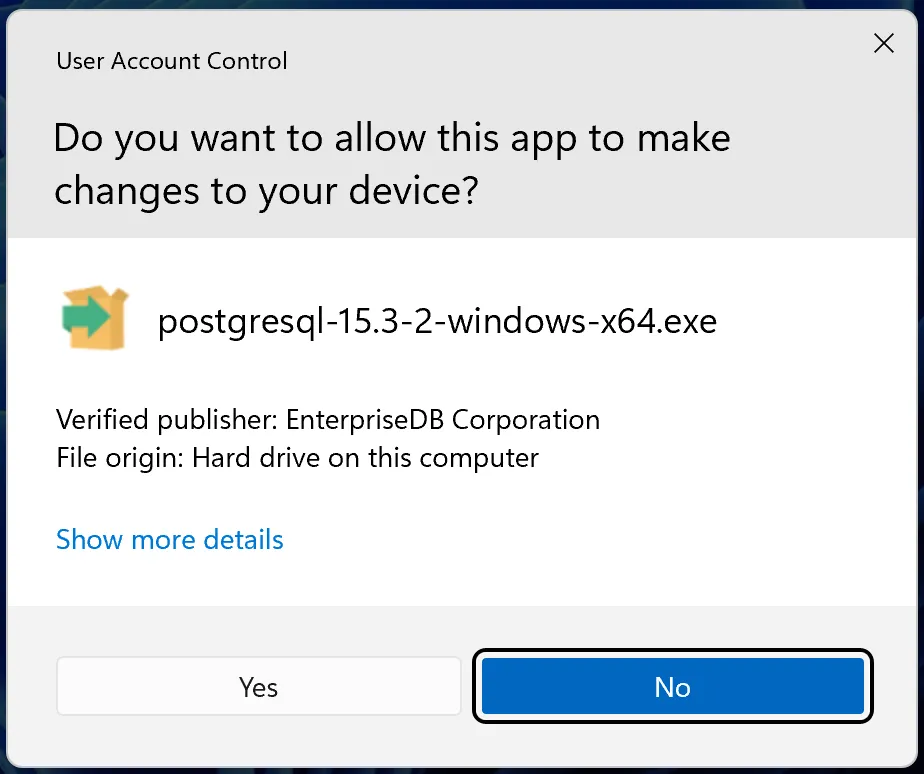
Run the installer and confirm the Windows prompt with Yes.
-
On the Password page, set a password for the database superuser
postgres. Make a note of it: you need it later for the database connection of ISPICIO_E (ISPE_DB_PASSWORD).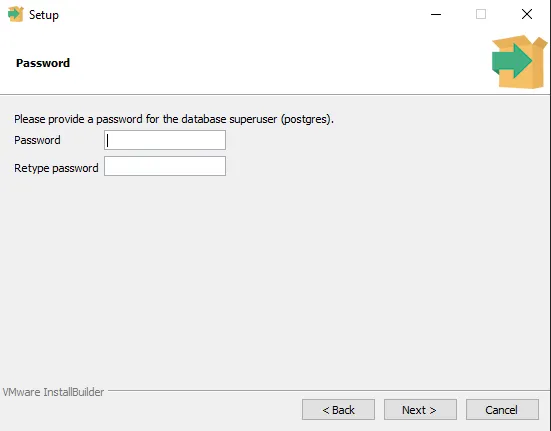
-
On the Port page, leave the port
5432unchanged.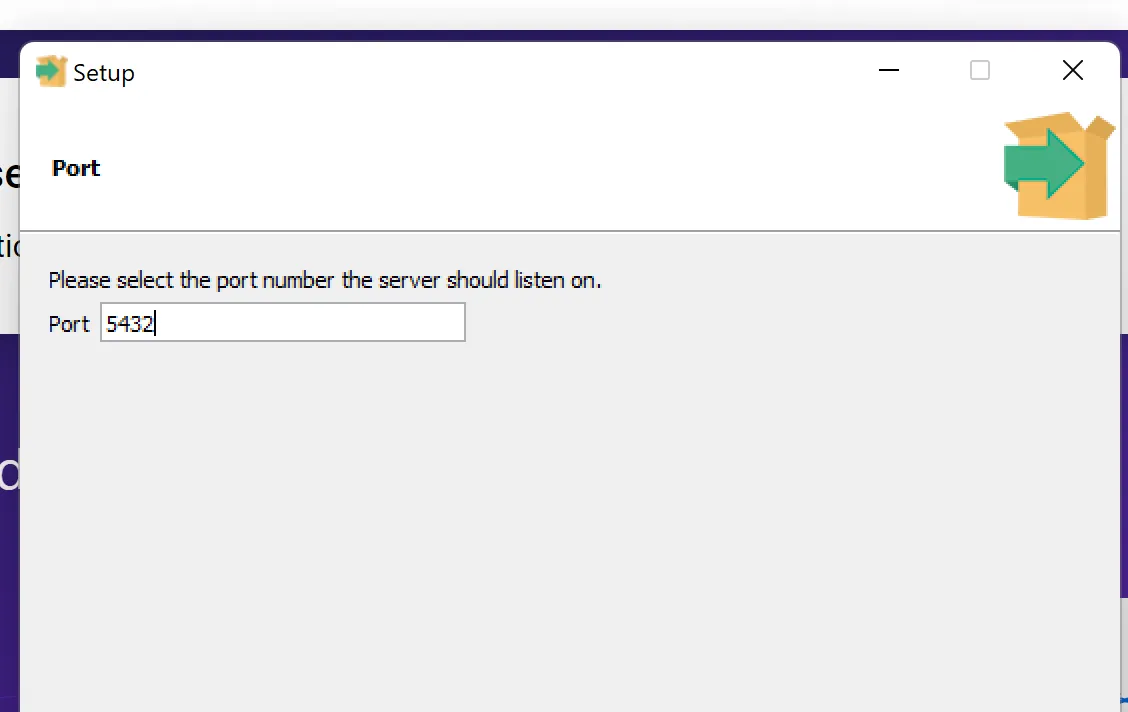
-
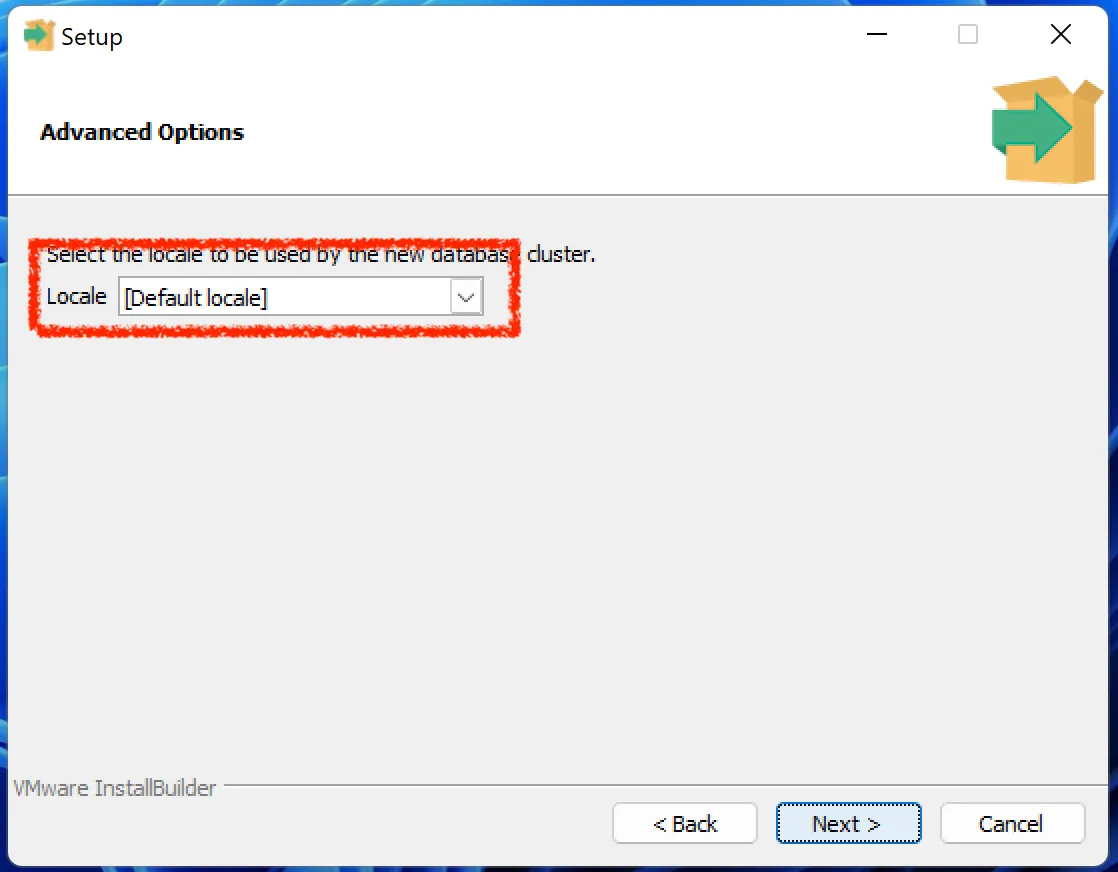
On the Advanced Options page, leave Locale set to [Default locale].
-
Keep the default settings on the other pages and complete the installation.
Create the database
-
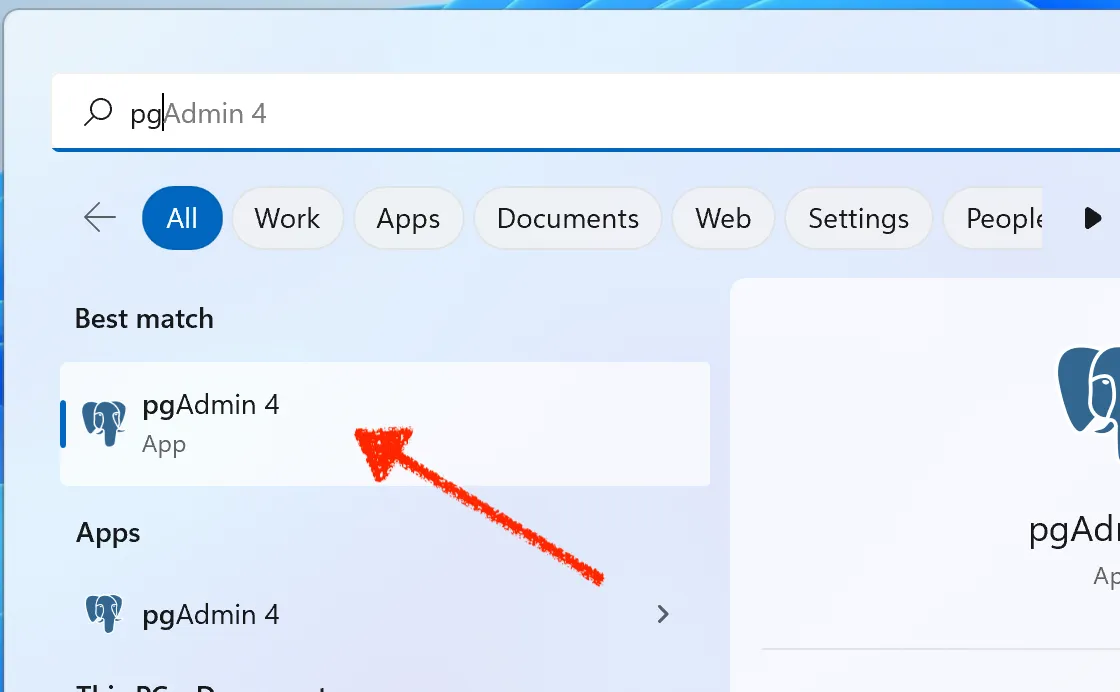
Open pgAdmin 4.
-
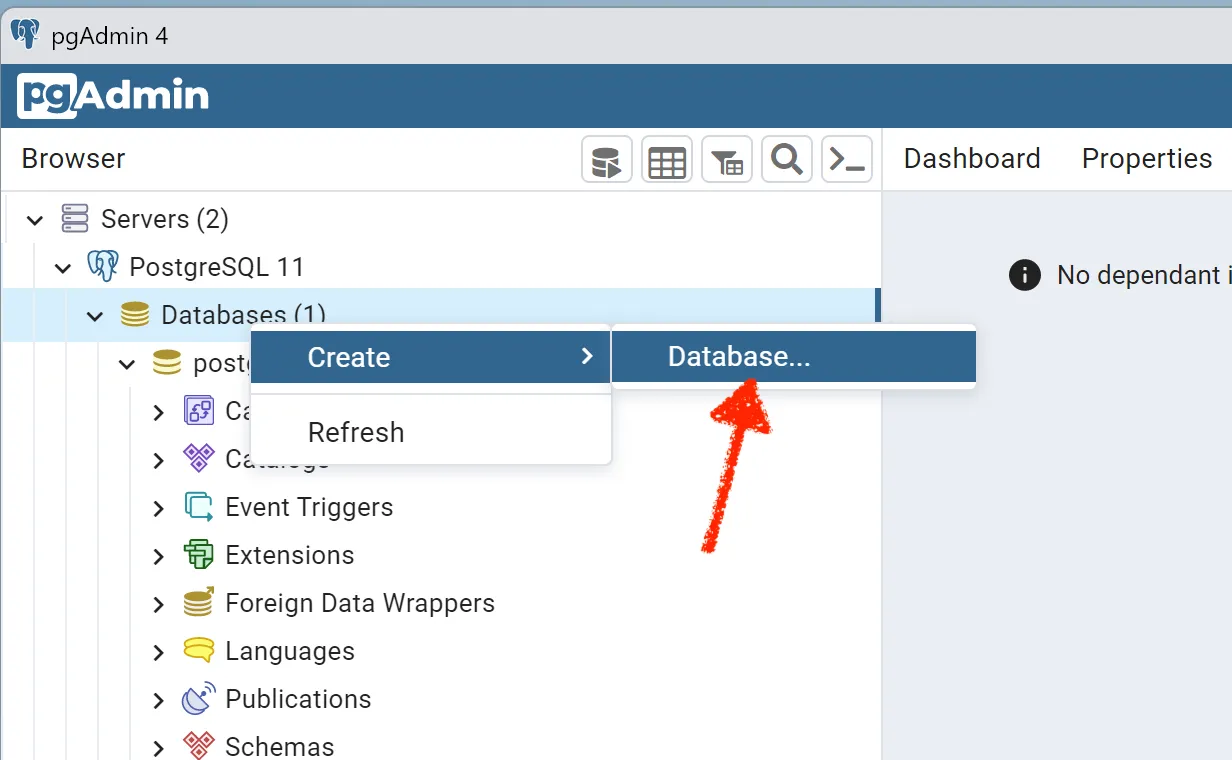
In the tree on the left, open Servers and then your PostgreSQL server. Right-click Databases and choose Create > Database….
-
On the General tab, enter
ispein the Database field.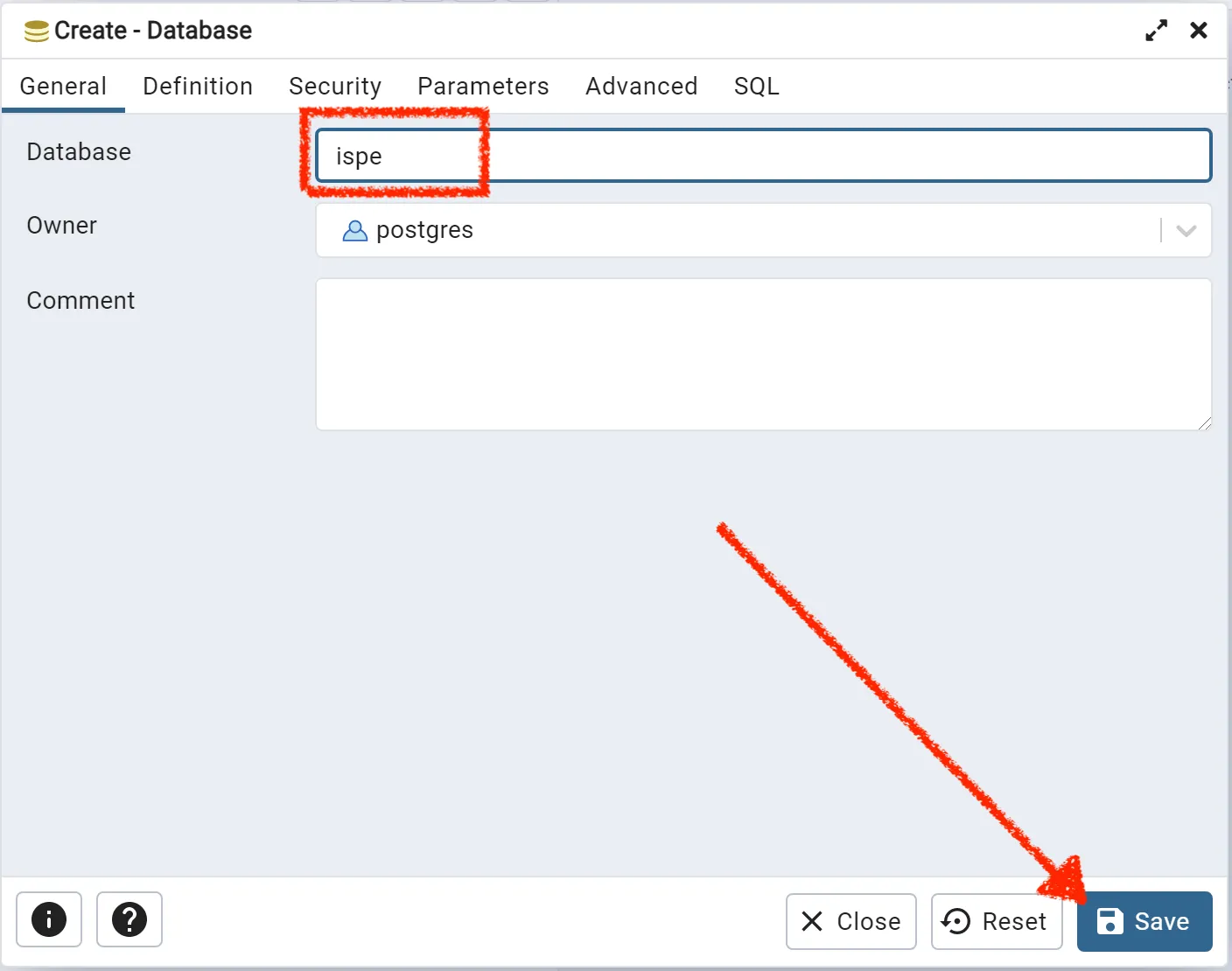
ISPICIO_E expects this name by default. If you choose a different name, you must set it in the variable
ISPE_DB_NAMEwhen you connect ISPICIO_E to the database. -
In Owner, select the database user. The screenshot shows
postgres. -
Click Save.
Values for the database connection
You need the following values when you connect ISPICIO_E to the database, see Installation with Apache Tomcat or Installation with Docker.
| Variable | Value |
|---|---|
ISPE_DB_HOST |
Host name of the database server, for example localhost |
ISPE_DB_PORT |
Port of the database server, by default 5432 |
ISPE_DB_NAME |
Name of the database, by default ispe |
ISPE_DB_USER |
Database user, for example postgres |
ISPE_DB_PASSWORD |
Password of the database user |