Preparations in SAP
Activate the Security Audit Log, create a filter for the emergency users and set up the interface user that ISPICIO_E uses for the RFC connection to your SAP system.
On this page
ISPICIO_E needs the following in each SAP system that you want to connect:
- The Security Audit Log (SAL) is active.
- A SAL filter records the emergency users (
EMERGENCY*). - An interface user with the role
ZISPE_EMERGENCYexists. ISPICIO_E uses it for the RFC connection.
Set the instance parameters
-
Log on to the SAP system and call transaction
RZ10. -
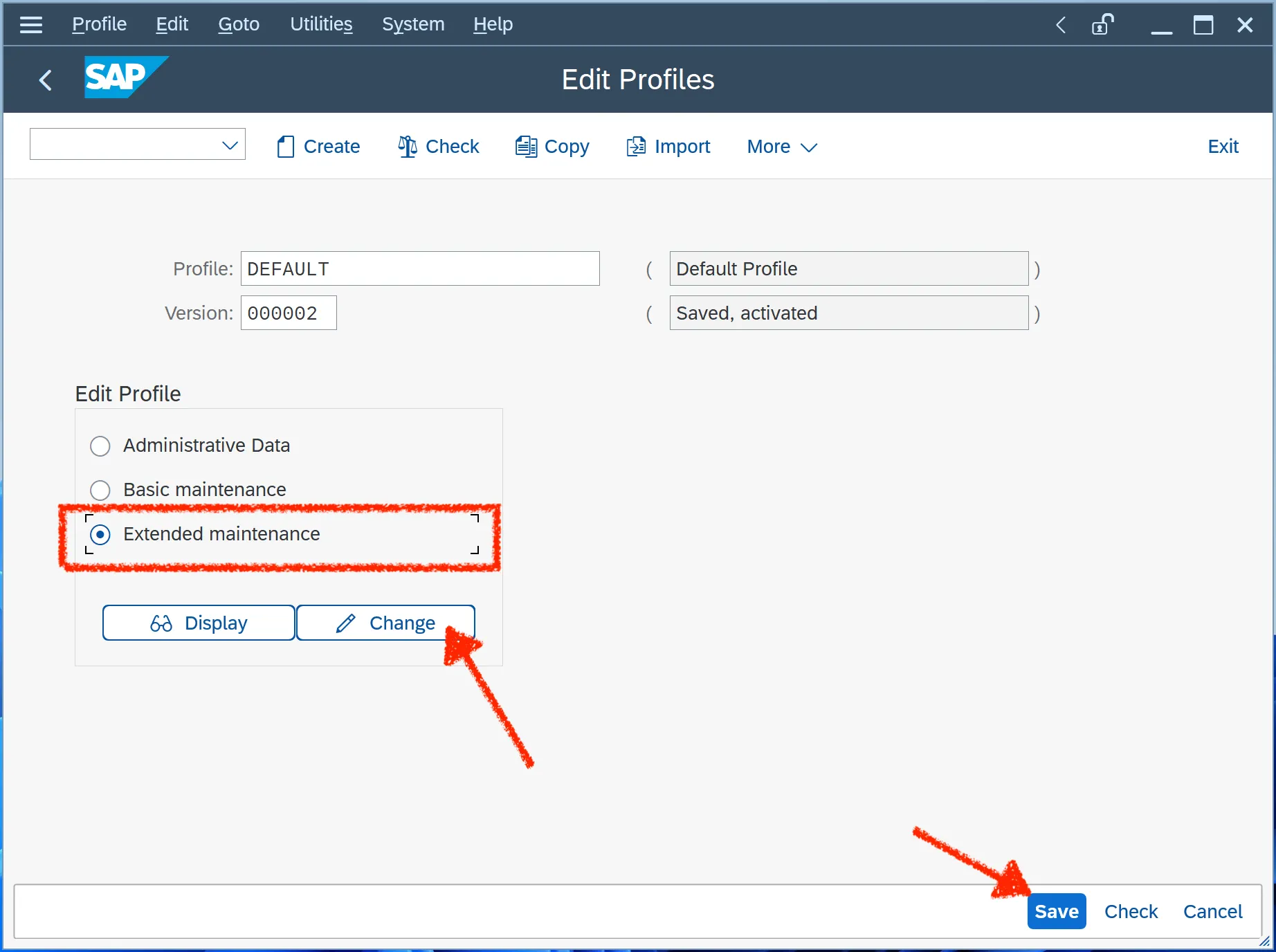
Select the profile, choose Extended maintenance and click Change.
-
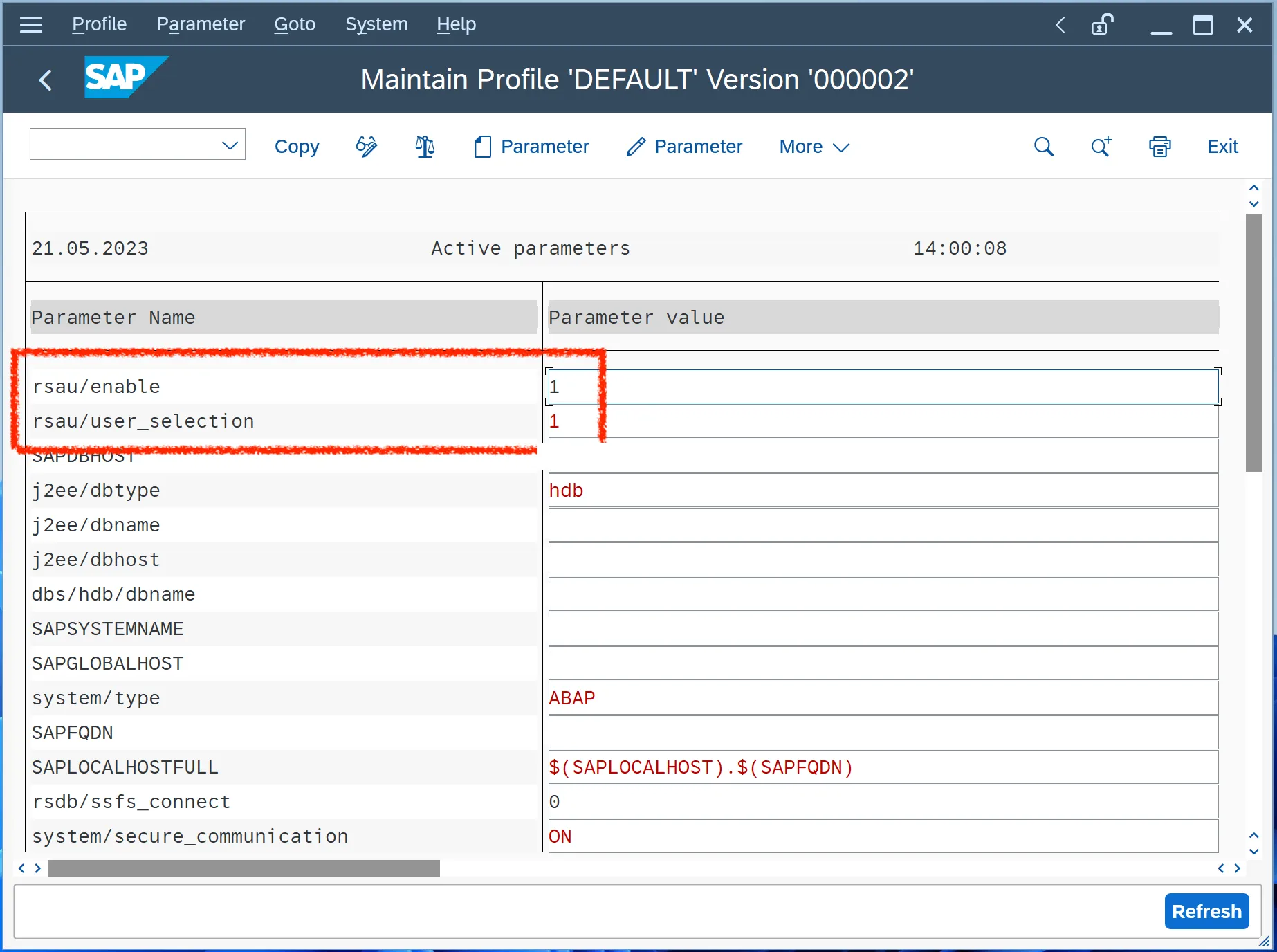
Set these two instance parameters to
1:rsau/enableactivates the Security Audit Log.rsau/user_selectionallows generic user names such asEMERGENCY*in the filter.
-
Go back to the Edit Profiles screen, save the profile with Save and activate it. The profile then has the status Saved, activated, as in the first screenshot.
-
If your Security Audit Log is controlled by the profile parameters in
RZ10, restart the affected ABAP application server instances after you have activated the profile. Both parameters are static: they only take effect after a restart, and in transactionRZ11you can only check them, not change them.
Create the SAL filter
Create a filter that records the actions of the emergency users. Use transaction SM19 or its successor RSAU_CONFIG, whichever is available in your SAP release.
Option A: Transaction SM19
-
Call transaction
SM19. -
On the Static Configuration tab, create a profile or open an existing one.
-
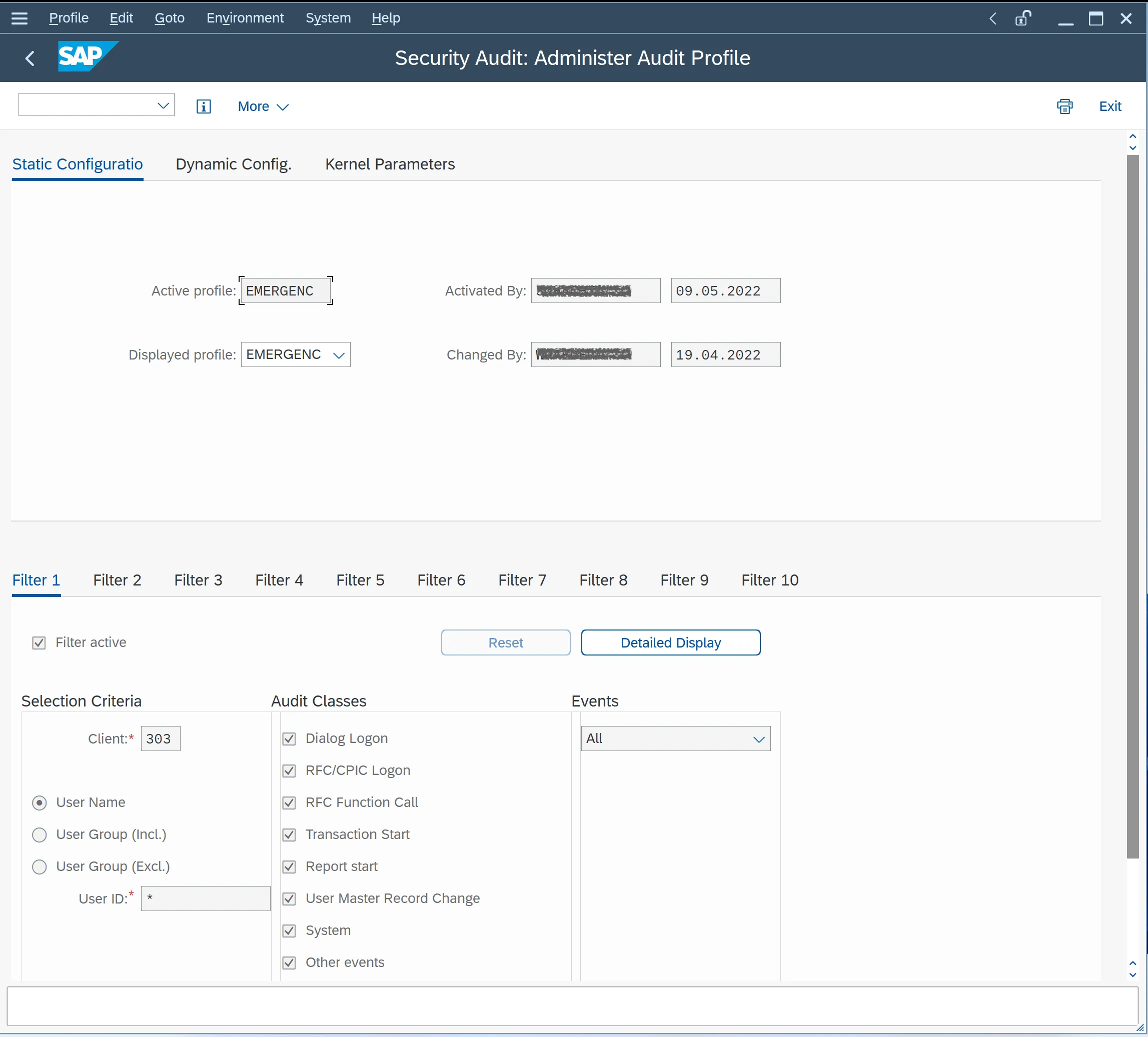
Open a free filter, for example Filter 1, and select Filter active.
-
Under Selection Criteria, enter the client in which the emergency users work in Client. Select User Name and enter
EMERGENCY*in User ID. -
Under Audit Classes, select all classes and set Events to All.
-
Save the profile and activate it. It then appears in Active profile.
Option B: Transaction RSAU_CONFIG
-
Call transaction
RSAU_CONFIG. -
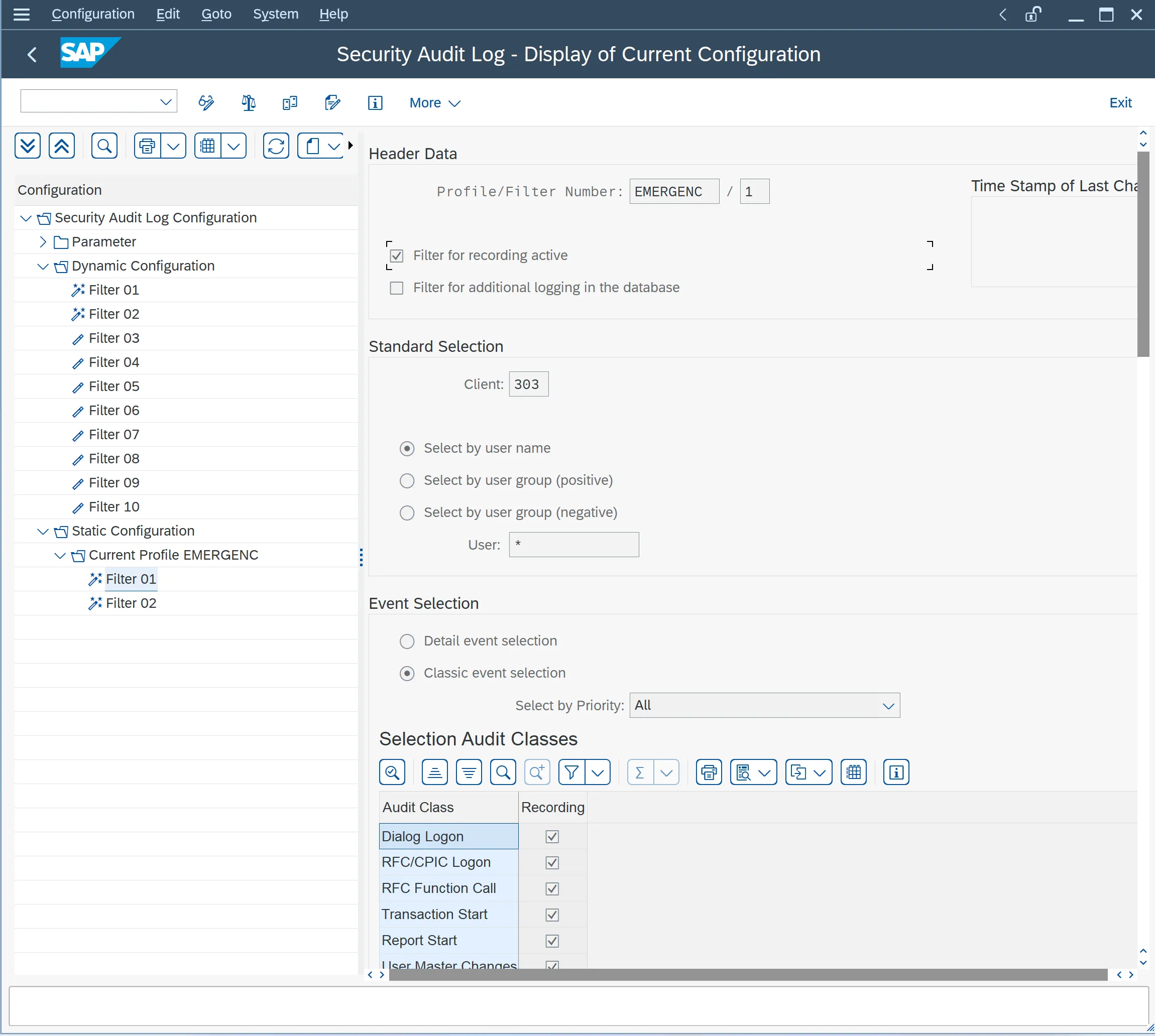
Under Static Configuration, create a profile or open an existing one and add a filter. The screenshot shows Filter 01 of the profile
EMERGENC. -
Select Filter for recording active.
-
Under Standard Selection, enter the client in which the emergency users work in Client. Select Select by user name and enter
EMERGENCY*in User. -
Under Event Selection, select Classic event selection and set Select by Priority to All. Select all audit classes in the Recording column.
-
Save the configuration and activate it.
Create the interface user
ISPICIO_E communicates with the SAP system via RFC. For this it needs an interface user with the role ZISPE_EMERGENCY. First create the role, then the user.
Option A: Import the role with PFCG
-
The role file
ZISPE_EMERGENCY.SAPis part of the ISPICIO_E ZIP archive. Download the archive from the Downloads page and unpack it. -
Call transaction
PFCG(Profile Generator) and import the role from this file.
Option B: Create the role manually
-
Call transaction
PFCGand create a role. -
Add the following authorization objects with these field values:
Authorization object Field Value S_RFCACTVT16S_RFCRFC_NAME*S_RFCRFC_TYPEFUGR,FUNCS_TCODETCDPFCGS_ADMI_FCDS_ADMI_FCDAUDDS_RZL_ADMACTVT03S_USER_AGRACTVT01,03,06,22,36,64S_USER_AGRACT_GROUP*S_USER_AUTACTVT*S_USER_AUTAUTH*S_USER_AUTOBJECT*S_USER_GRPACTVT*S_USER_GRPCLASS*S_USER_PROACTVT*S_USER_PROPROFILE*S_USER_SASACTVT22S_USER_SASACT_GROUP*S_USER_SASCLASS*S_USER_SASPROFILE*S_USER_SASSUBSYSTEM*S_XMI_PRODEXTCOMPANY*S_XMI_PRODEXTPRODUCT*S_XMI_PRODINTERFACE*
Create the user and assign the role
-
Create a user in the SAP system.
-
Assign the role from option A or B to this user.
ISPICIO_E logs on to the SAP system with this user. The Admin sets up the connection in ISPICIO_E, see Admin.