Reviewer
As a reviewer, you check completed emergency user sessions against the Security Audit Log, raise queries, approve or reject sessions and look up earlier sessions in the archive.
On this page
Open the sessions waiting for approval
-
Open ISPICIO_E in your browser and log in. In the example, ISPICIO_E runs on the local computer; your admin will tell you the address of your installation.
http://localhost:8080/e2022/ -
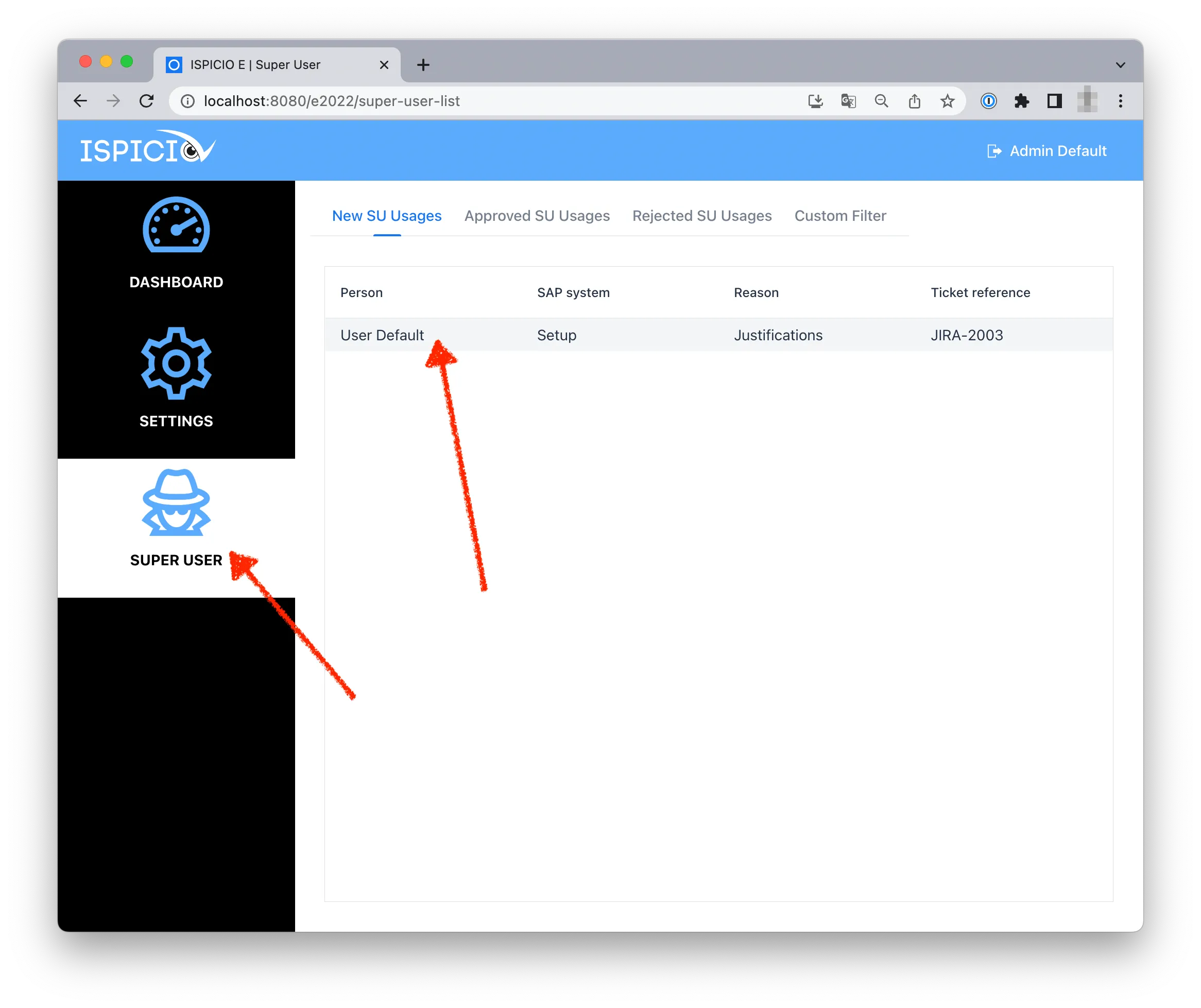
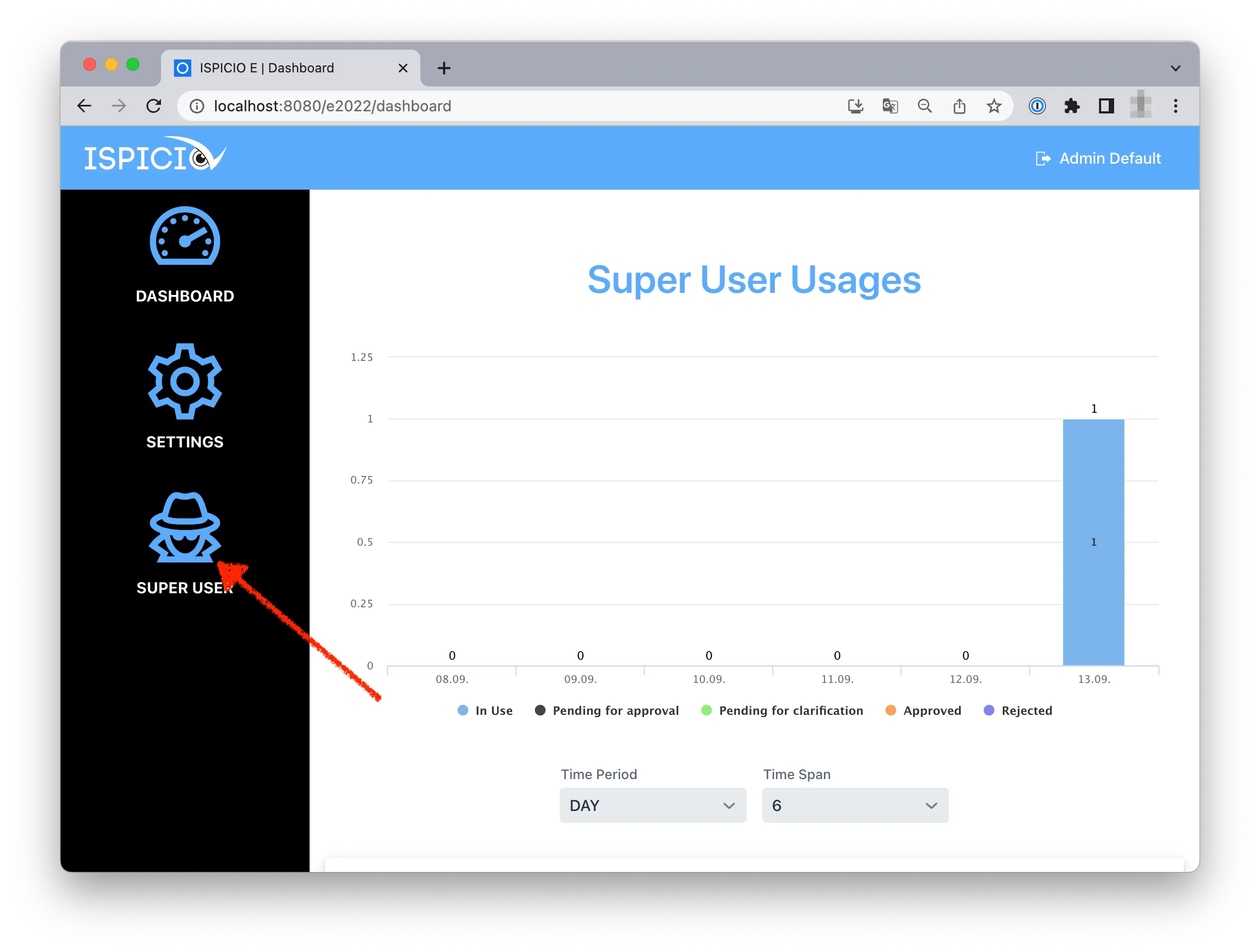
The dashboard shows how many sessions are waiting for approval. Click Show.

Alternatively, click SUPER USER in the menu on the left and open the New SU Usages tab.
-
Click an entry.
Review a session
-
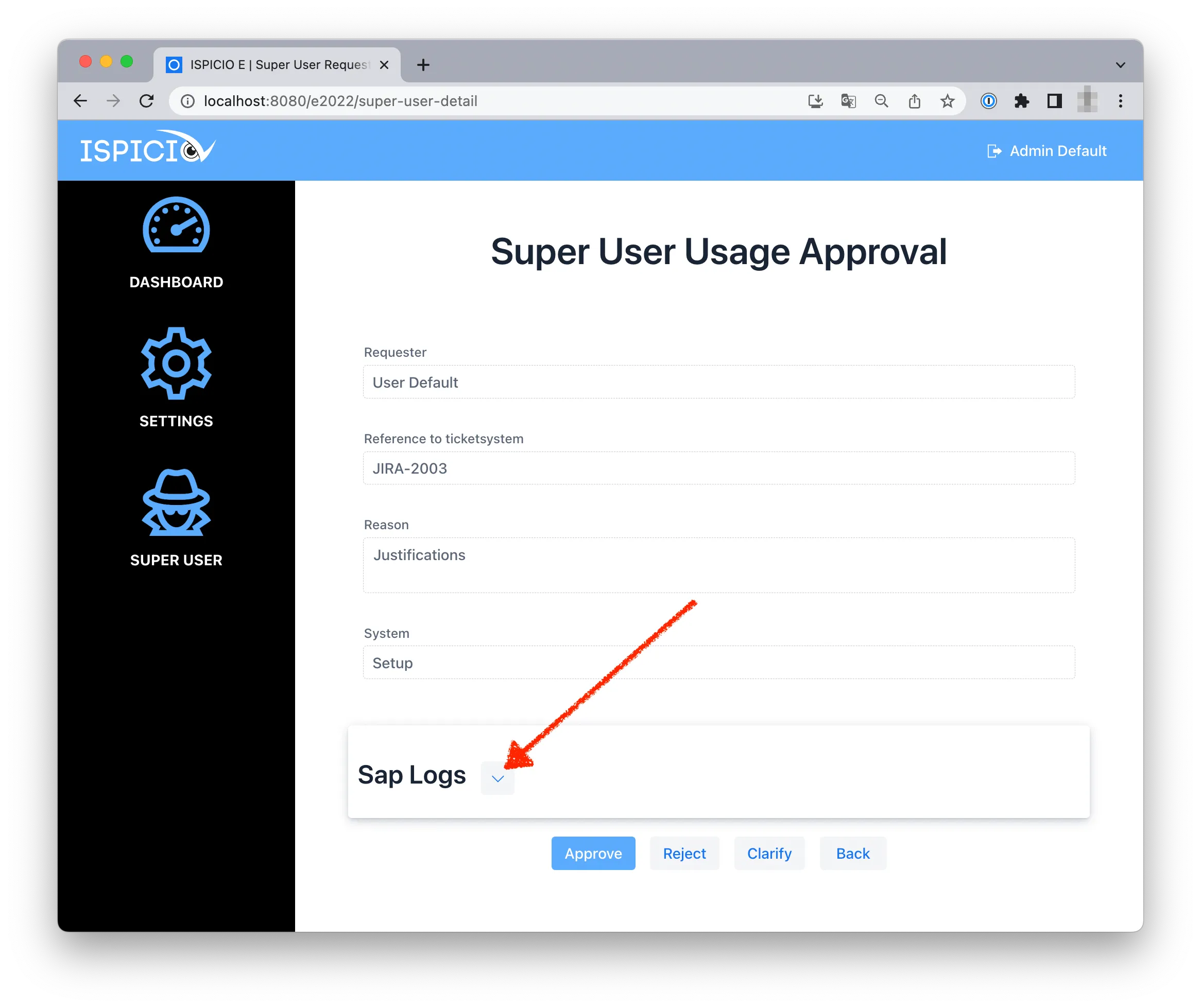
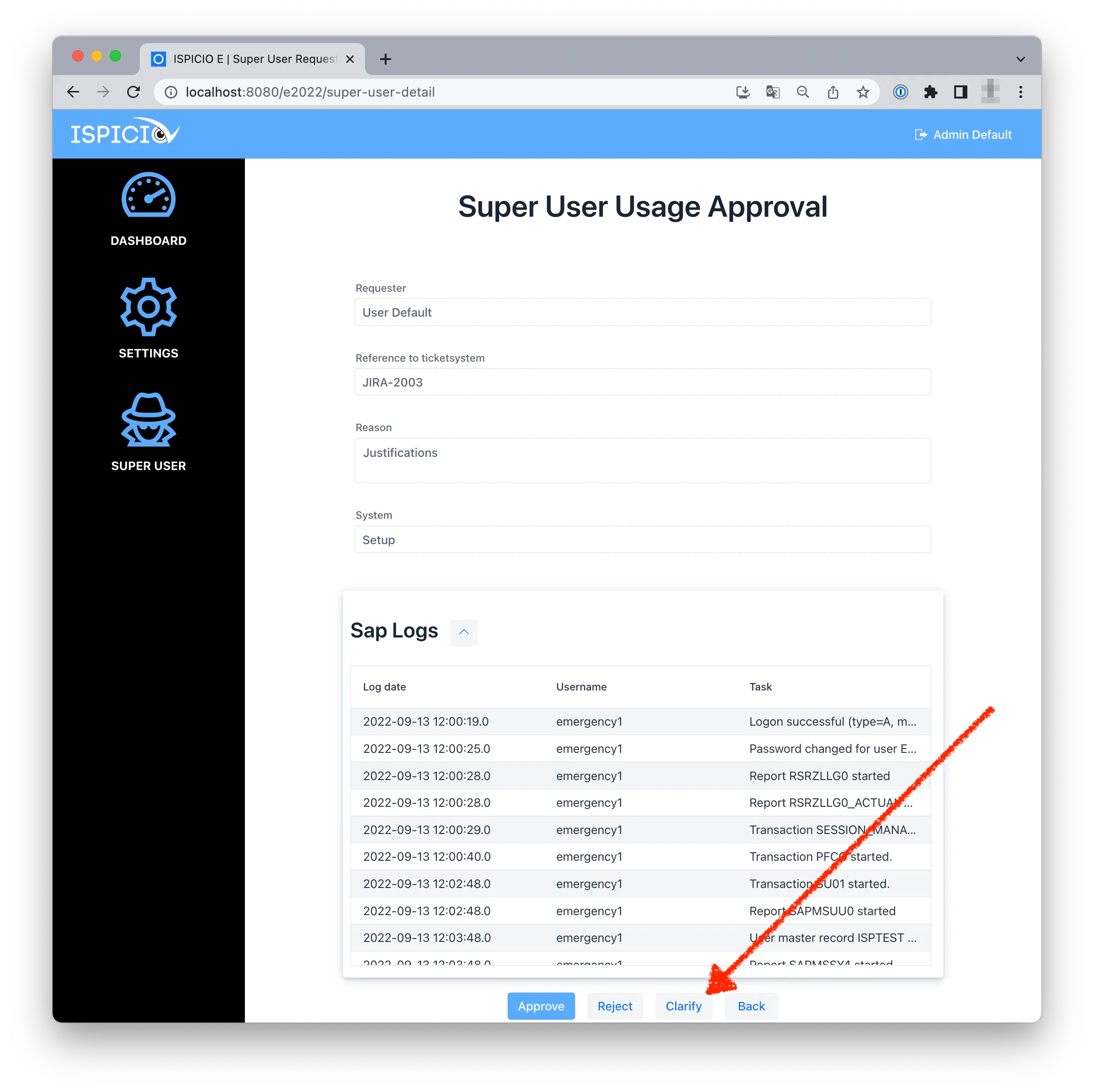
The Super User Usage Approval page shows all details of the session: Requester, Reference to ticketsystem, Reason and System. Click the arrow next to Sap Logs to display the entries of the Security Audit Log (SAL) that belong to the session.
-
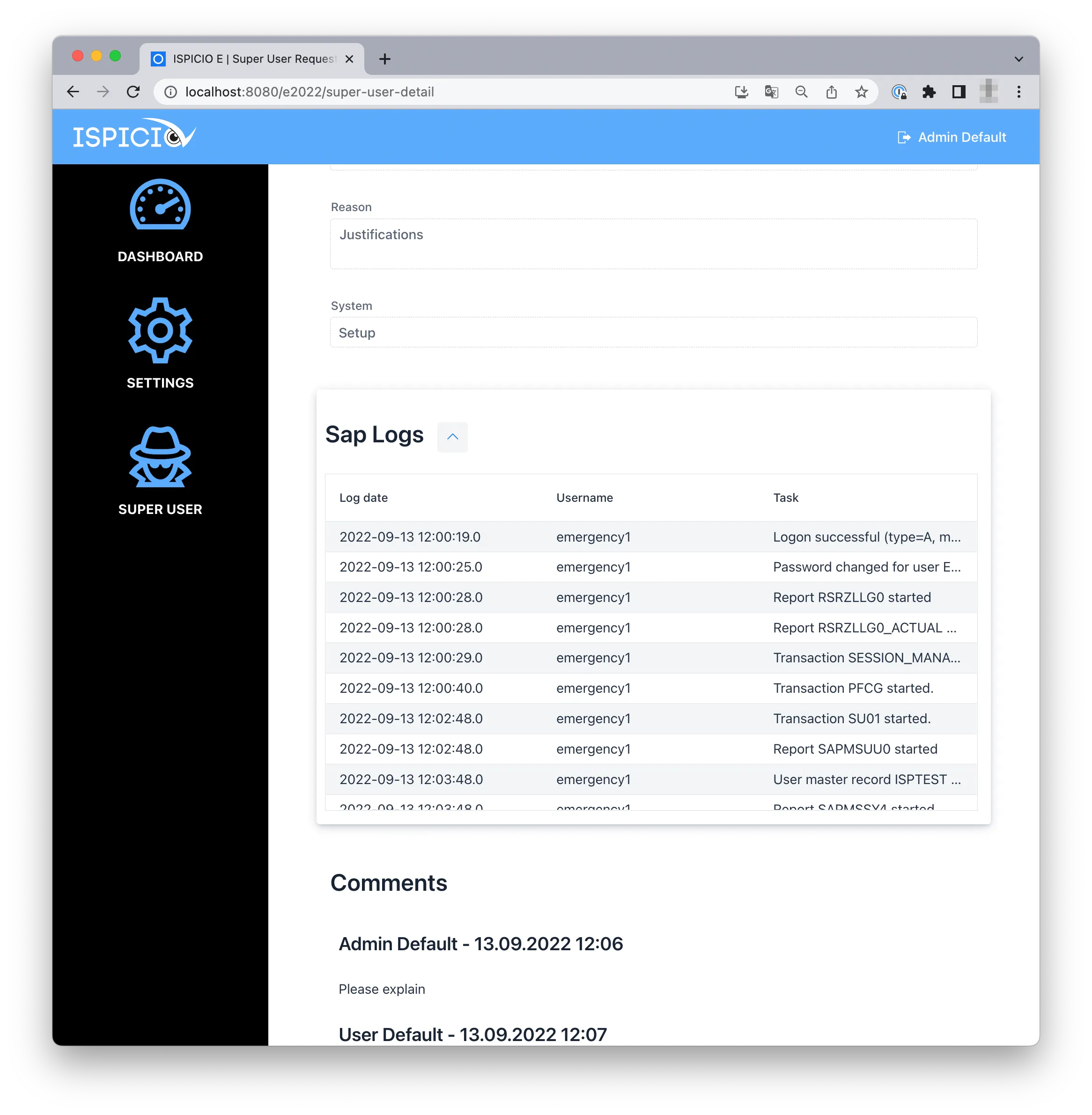
Check the entries. For each entry, the list shows Log date, Username and Task.
-
Choose one of the options at the bottom of the page:
Button Meaning Approve The session is approved. The SAL entries and the details of the session remain in the database and can be evaluated later. See “Approve or reject a session” below. Reject Your rejection is documented. Every rejection must lead to a follow-up action. See “Approve or reject a session” below. Clarify You send a query to the person who carried out the session. See “Raise a query” below.
Raise a query
-
Click Clarify.
-
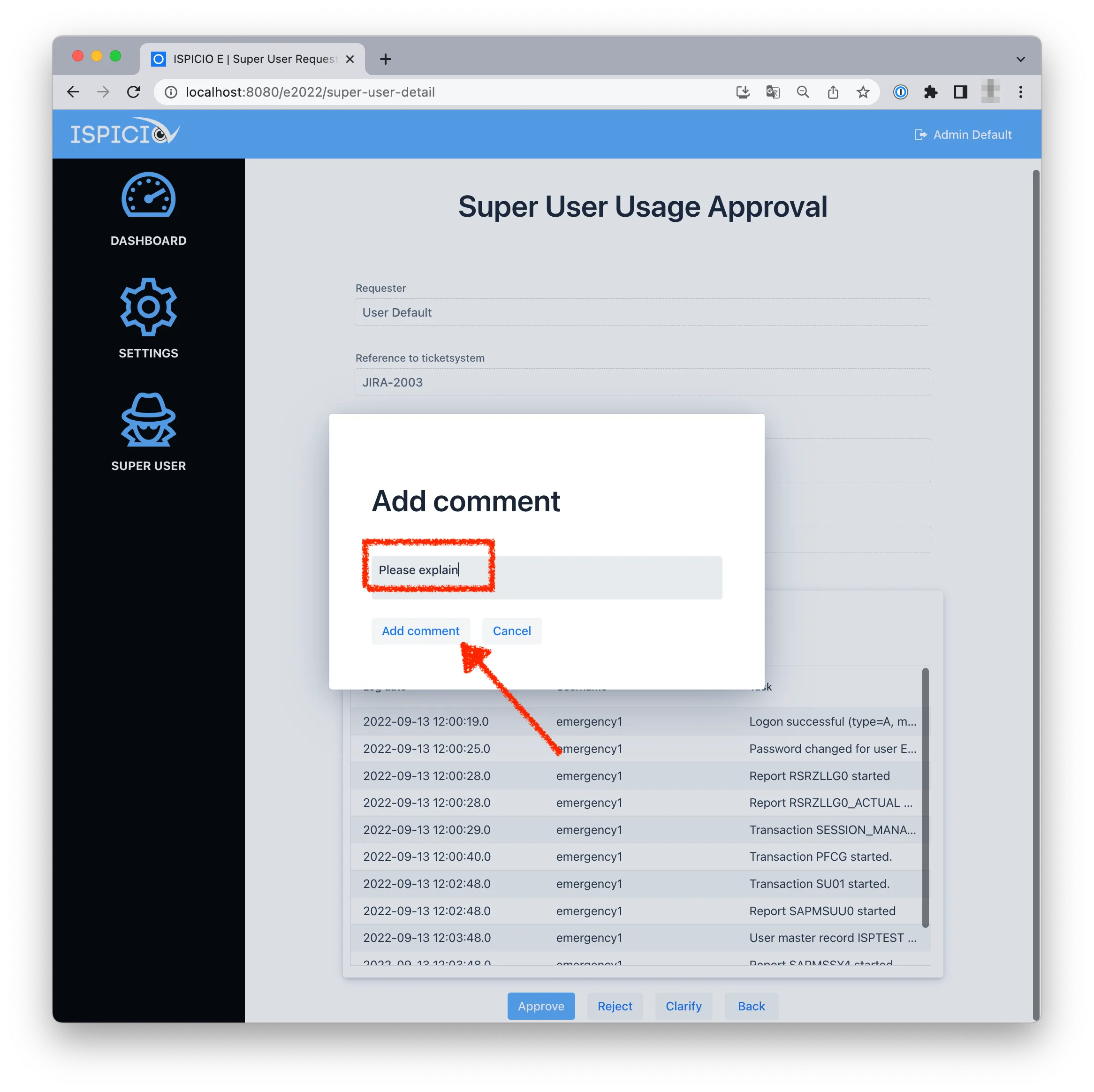
In the Add comment window, enter your query and click Add comment.
How the user answers the query
The following steps are carried out by the user, not by the reviewer. They are shown here so that you know the whole process.
-
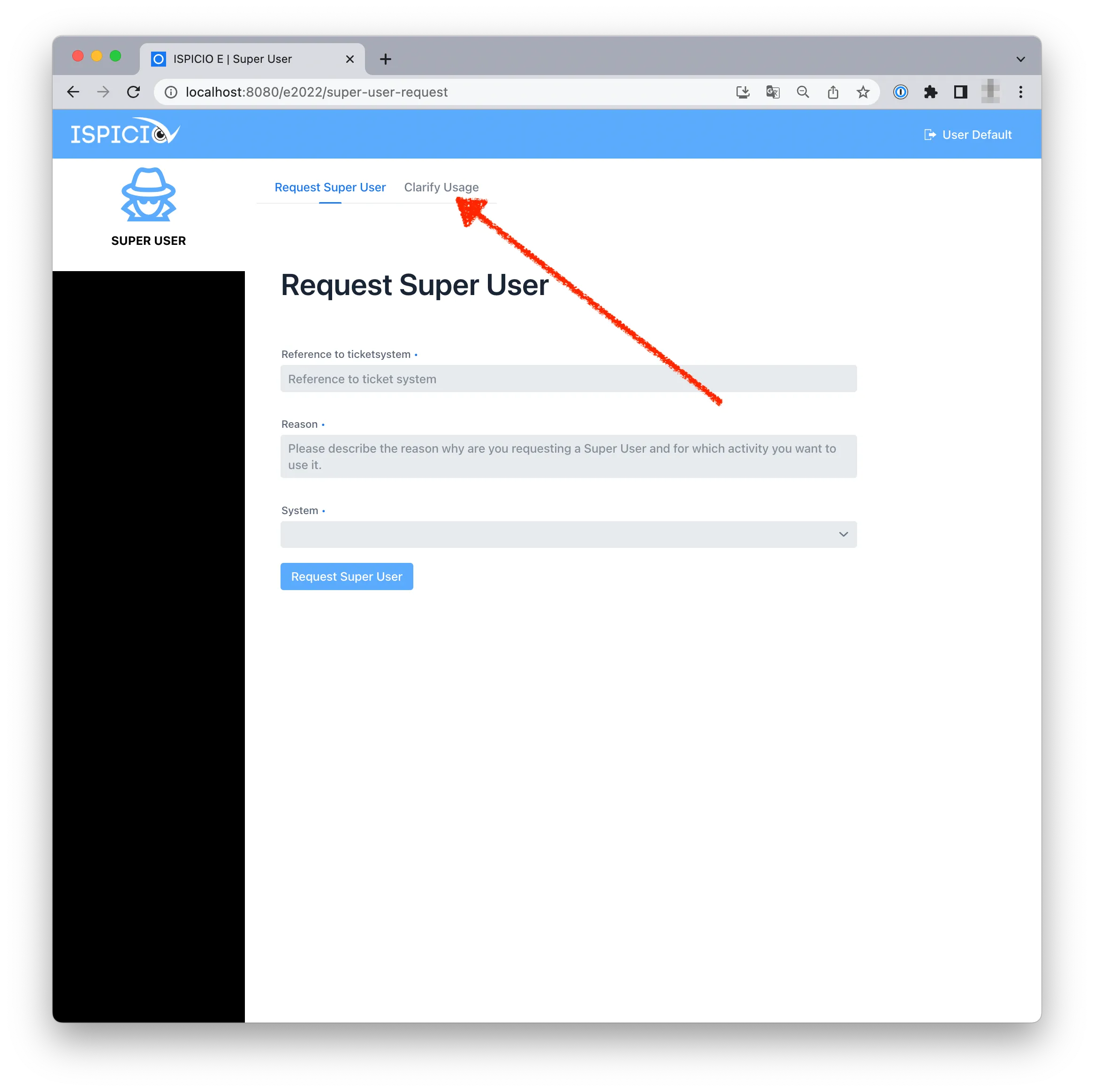
Having been notified by email, the user logs in to ISPICIO_E, clicks SUPER USER and opens the Clarify Usage tab. It lists the sessions with an open query.
-
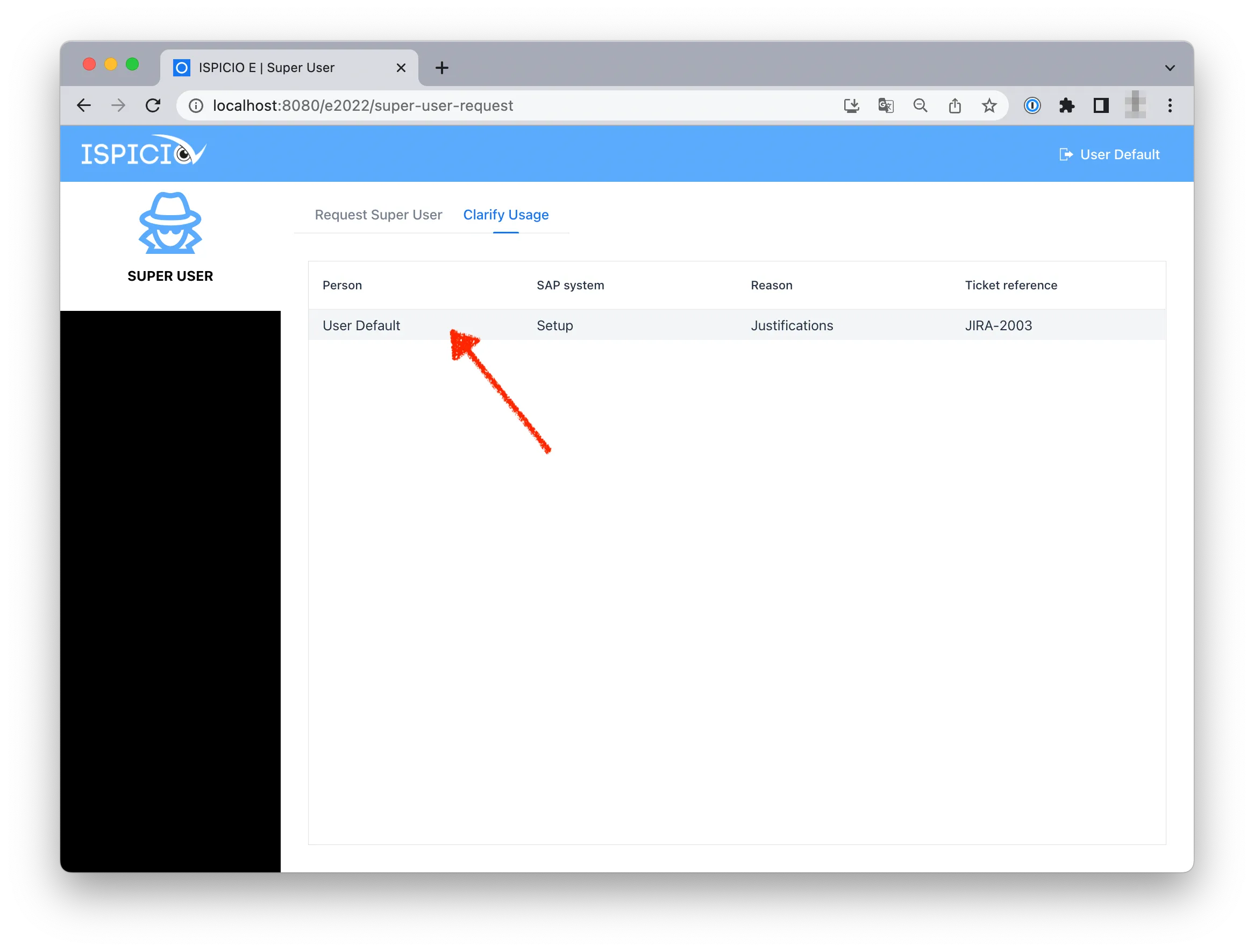
The user clicks the entry.
-
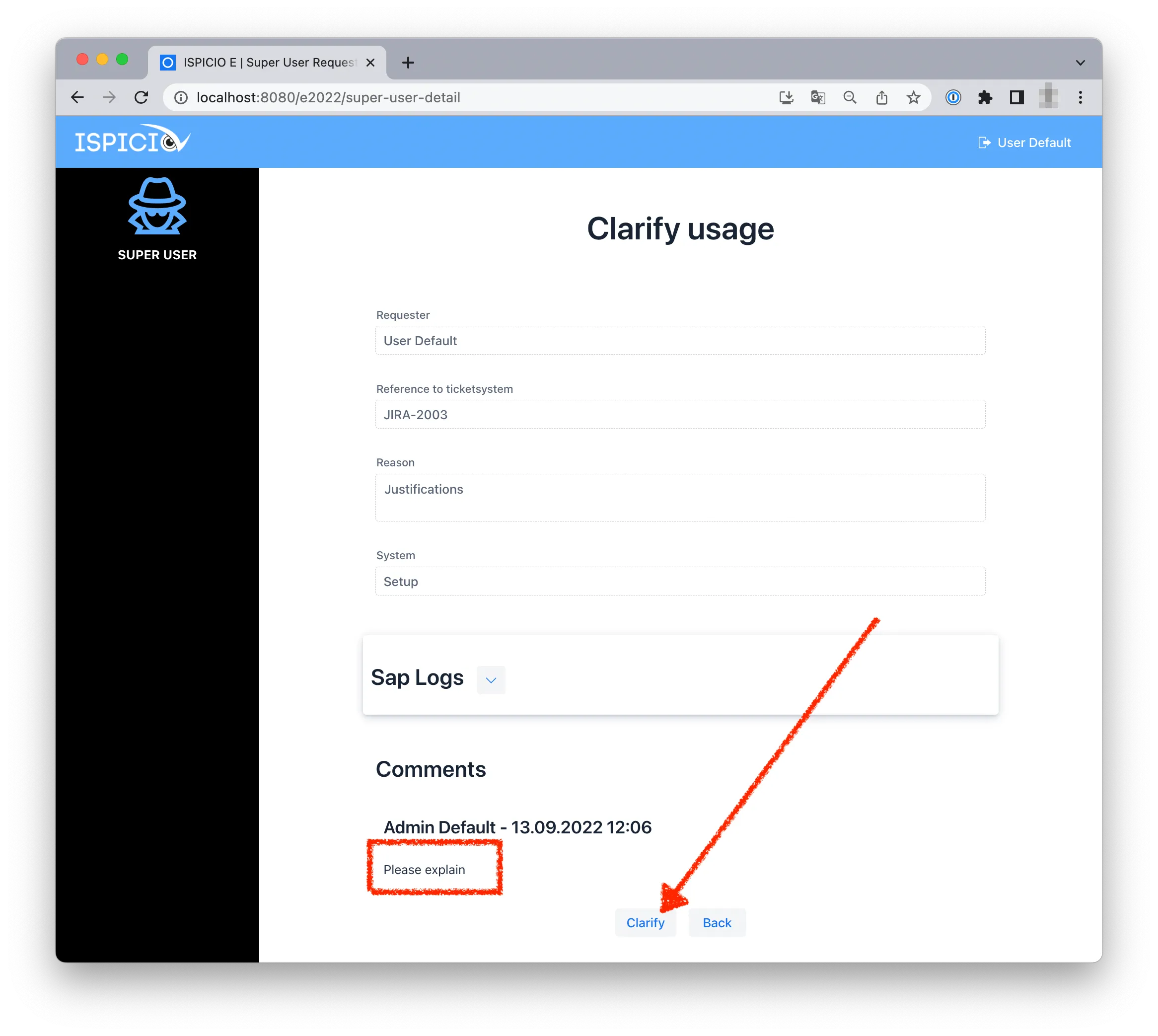
The reviewer’s query is shown under Comments. The user clicks Clarify.
-
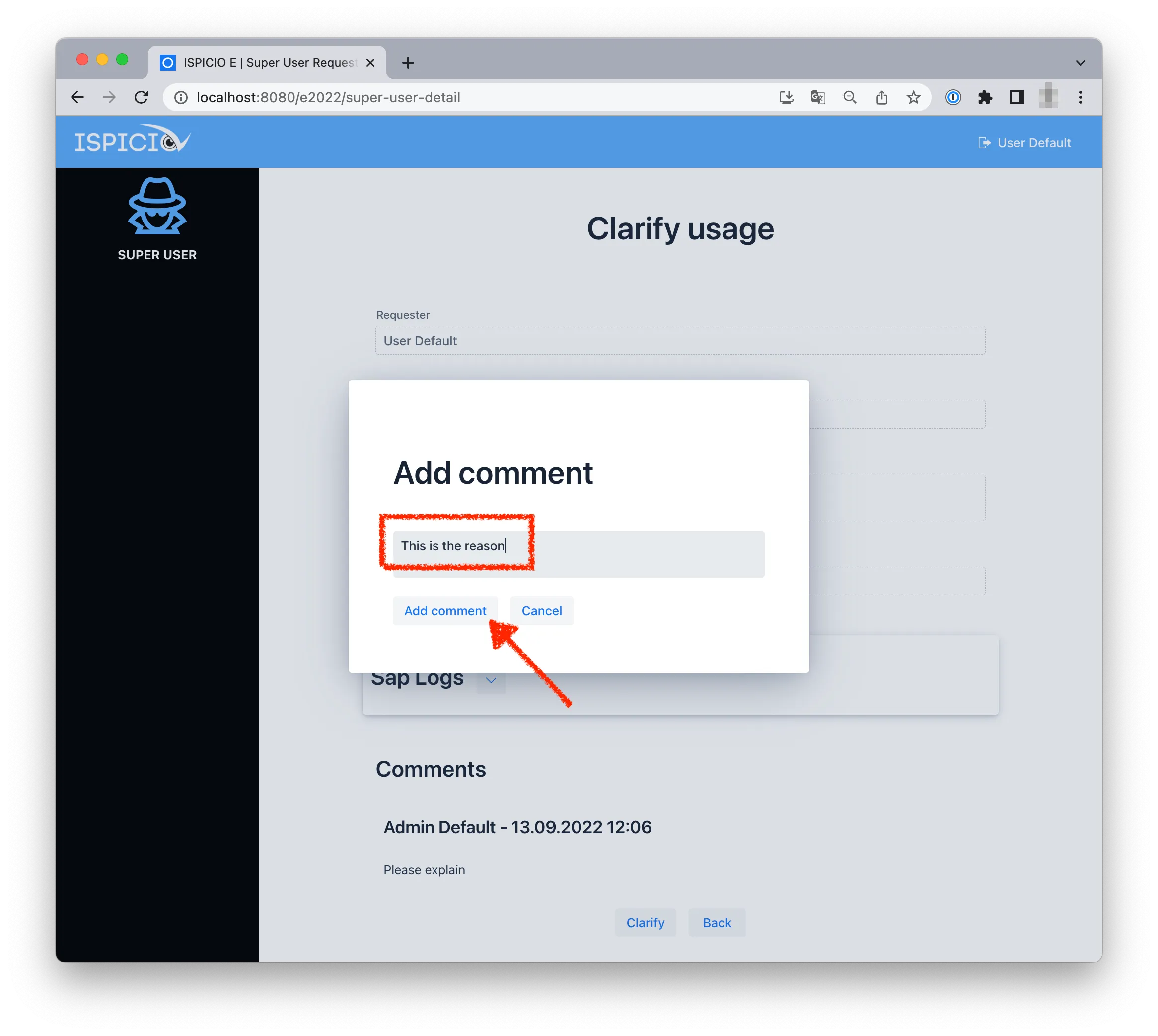
In the Add comment window, the user enters the answer and clicks Add comment.
-
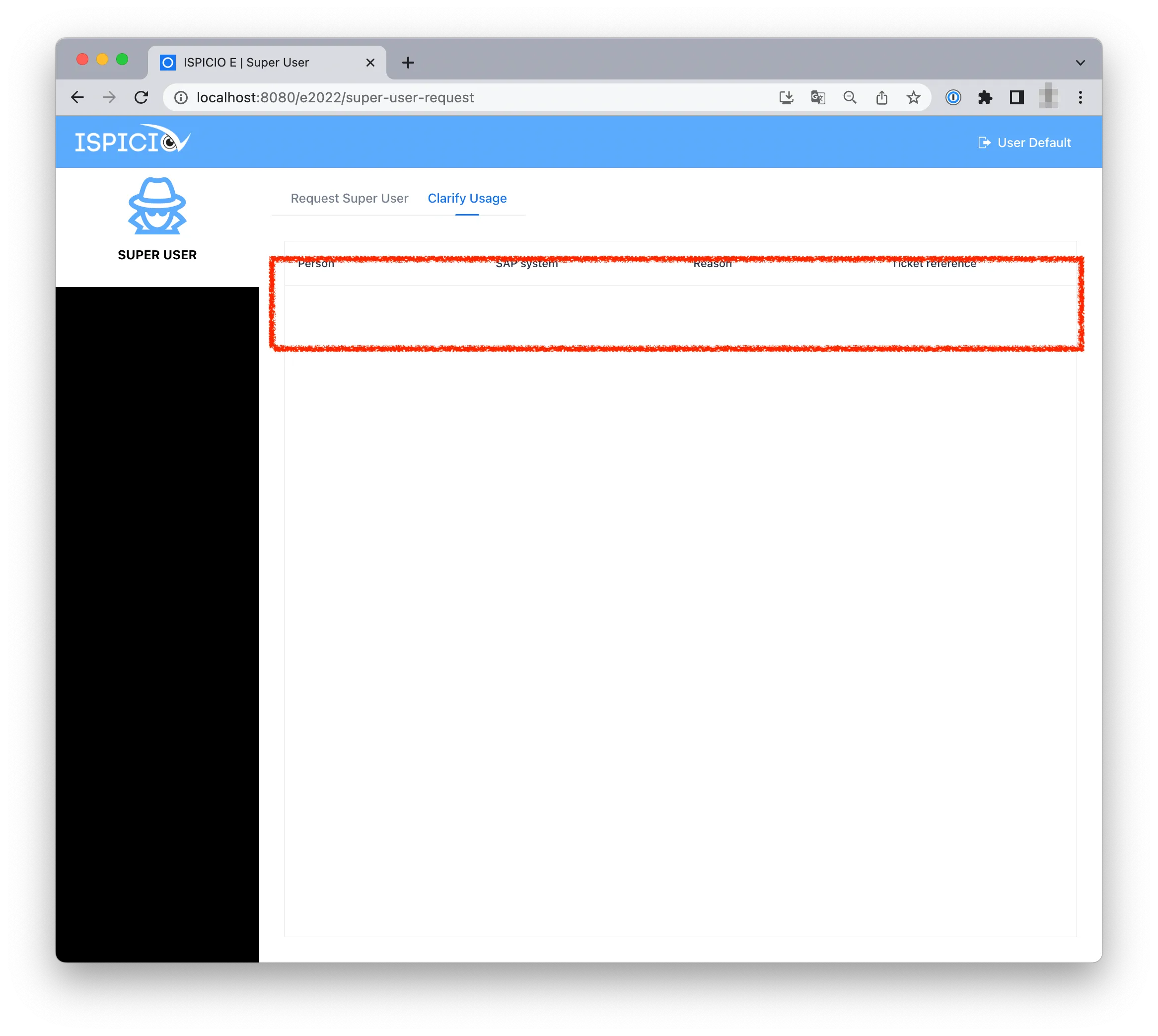
When all queries have been answered, the list on the Clarify Usage tab is empty.
Approve or reject a session
-
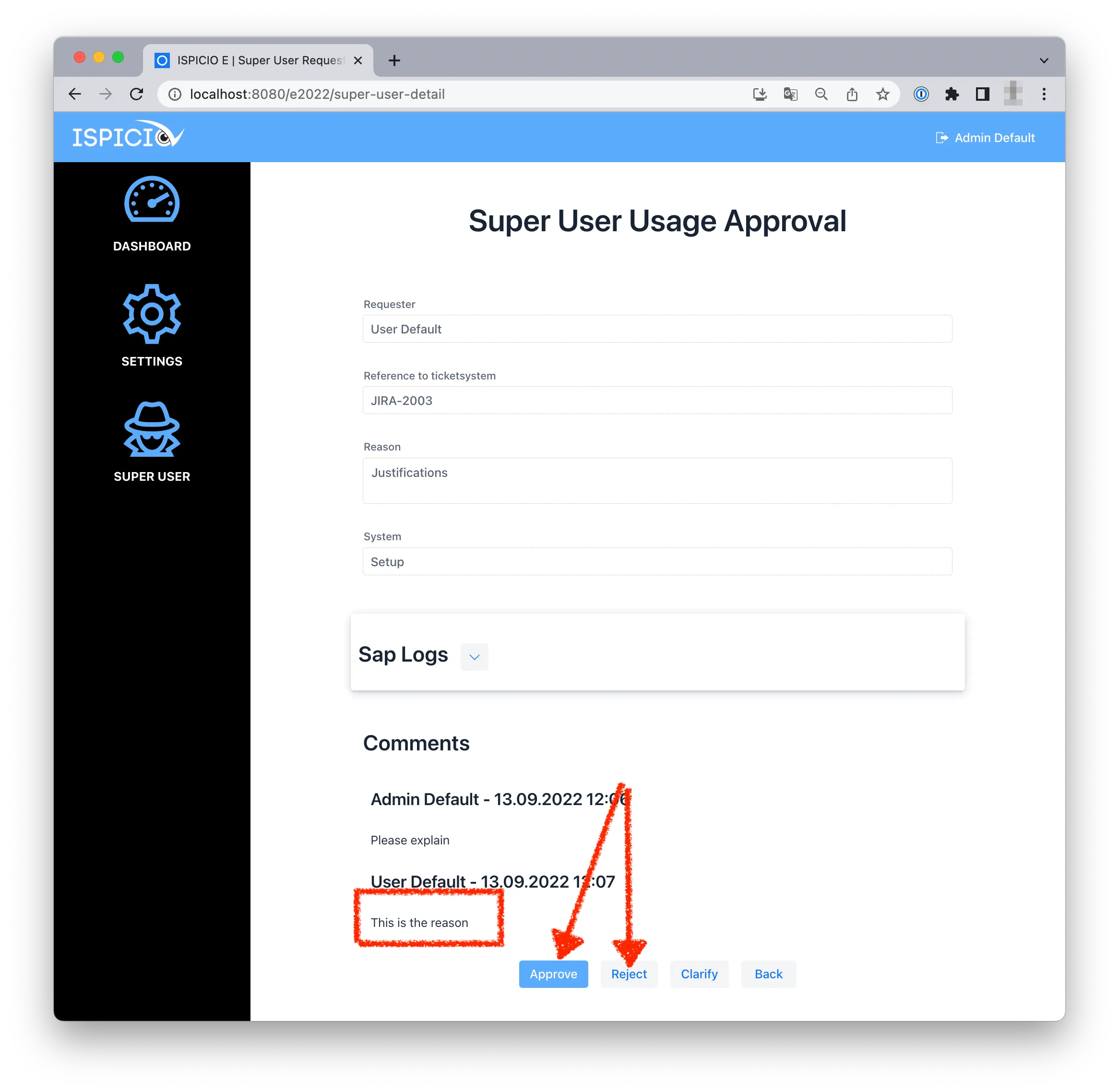
Open the session again. Your query and the user’s answer are listed under Comments.
-
Click Approve if the session was in order. Otherwise click Reject.
-
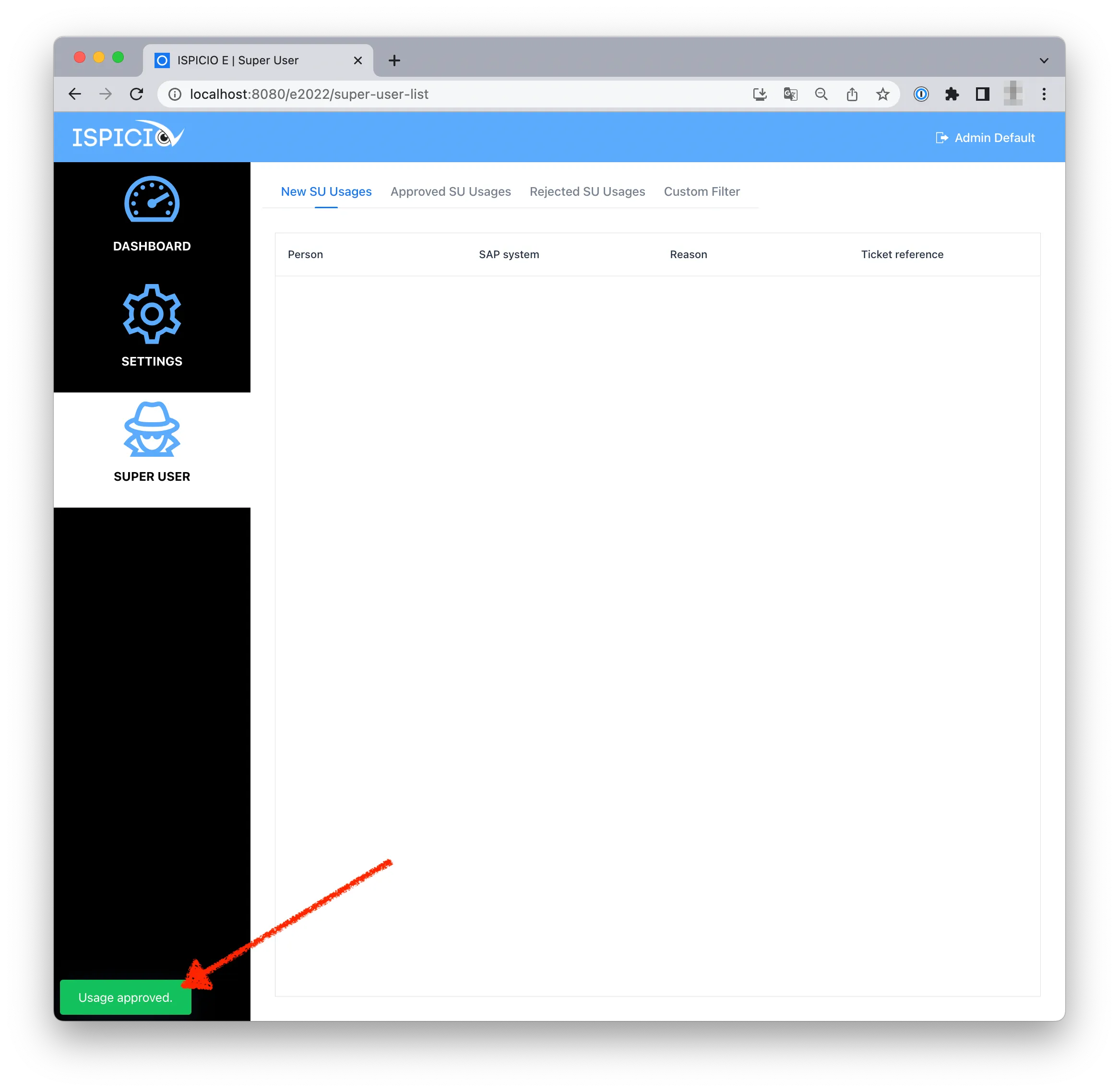
ISPICIO_E confirms the decision with a message at the bottom left, for example Usage approved. The session no longer appears on the New SU Usages tab.
View archived sessions
-
Click SUPER USER in the menu on the left.
-
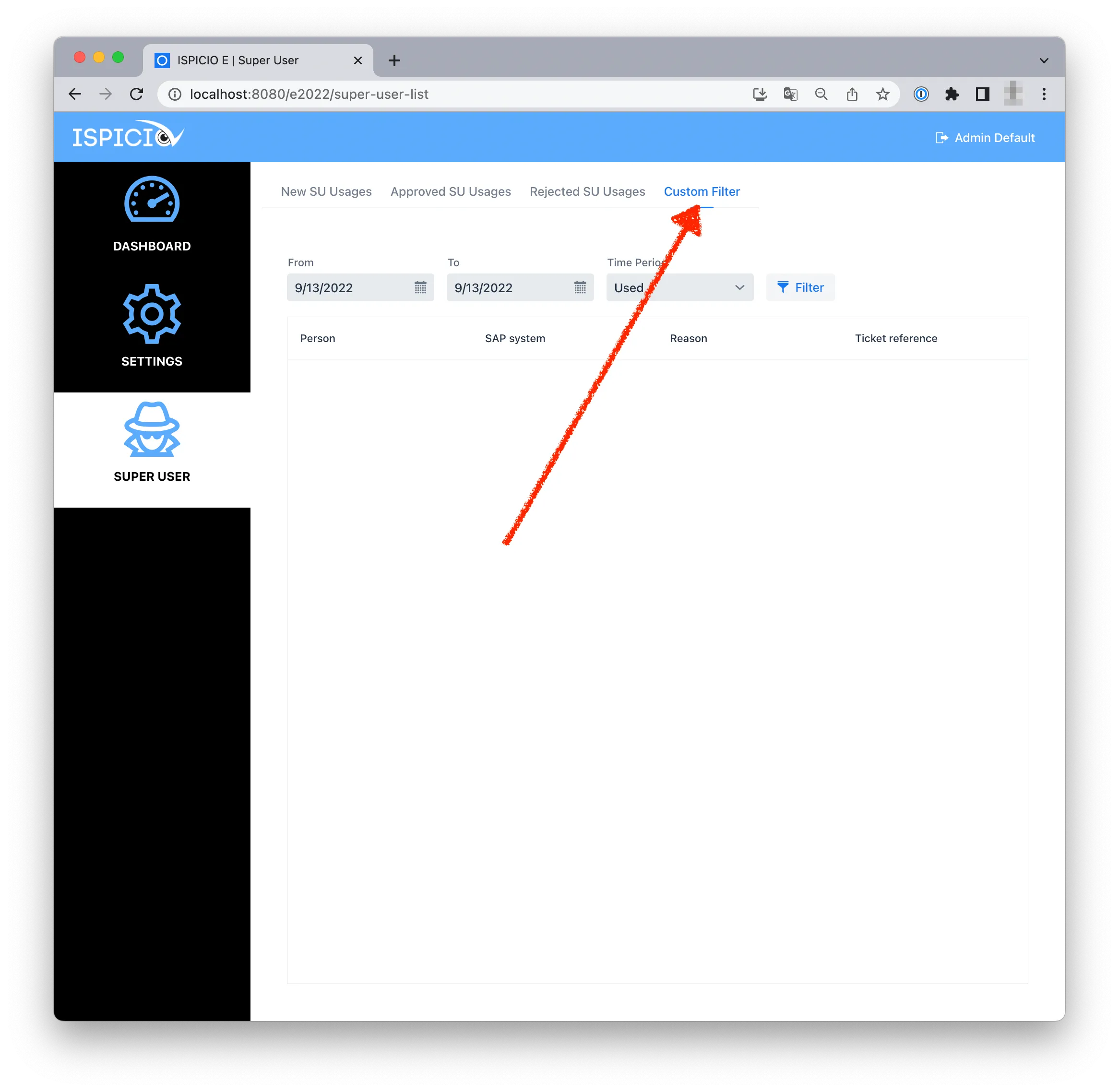
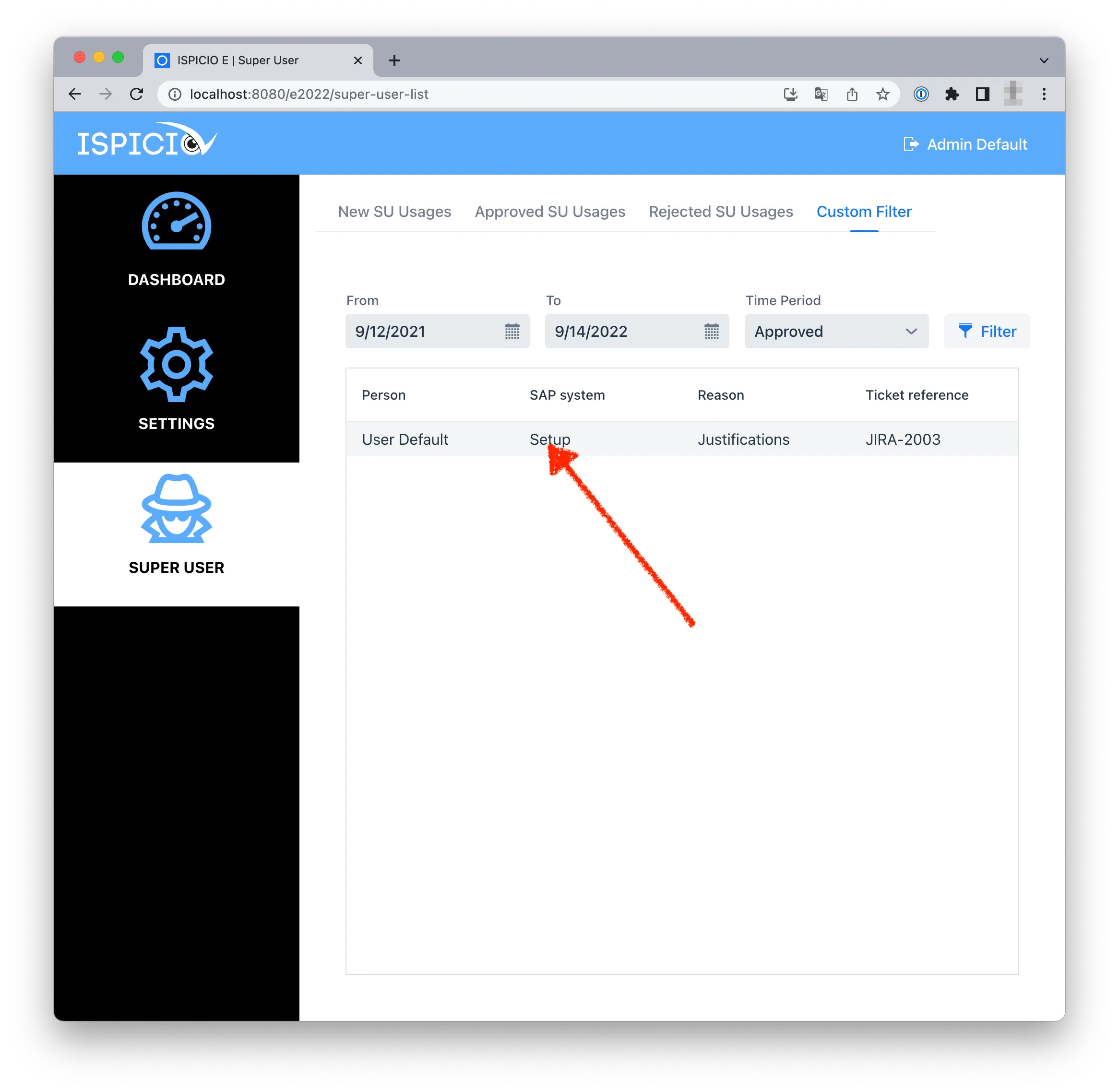
Open the Custom Filter tab.
-
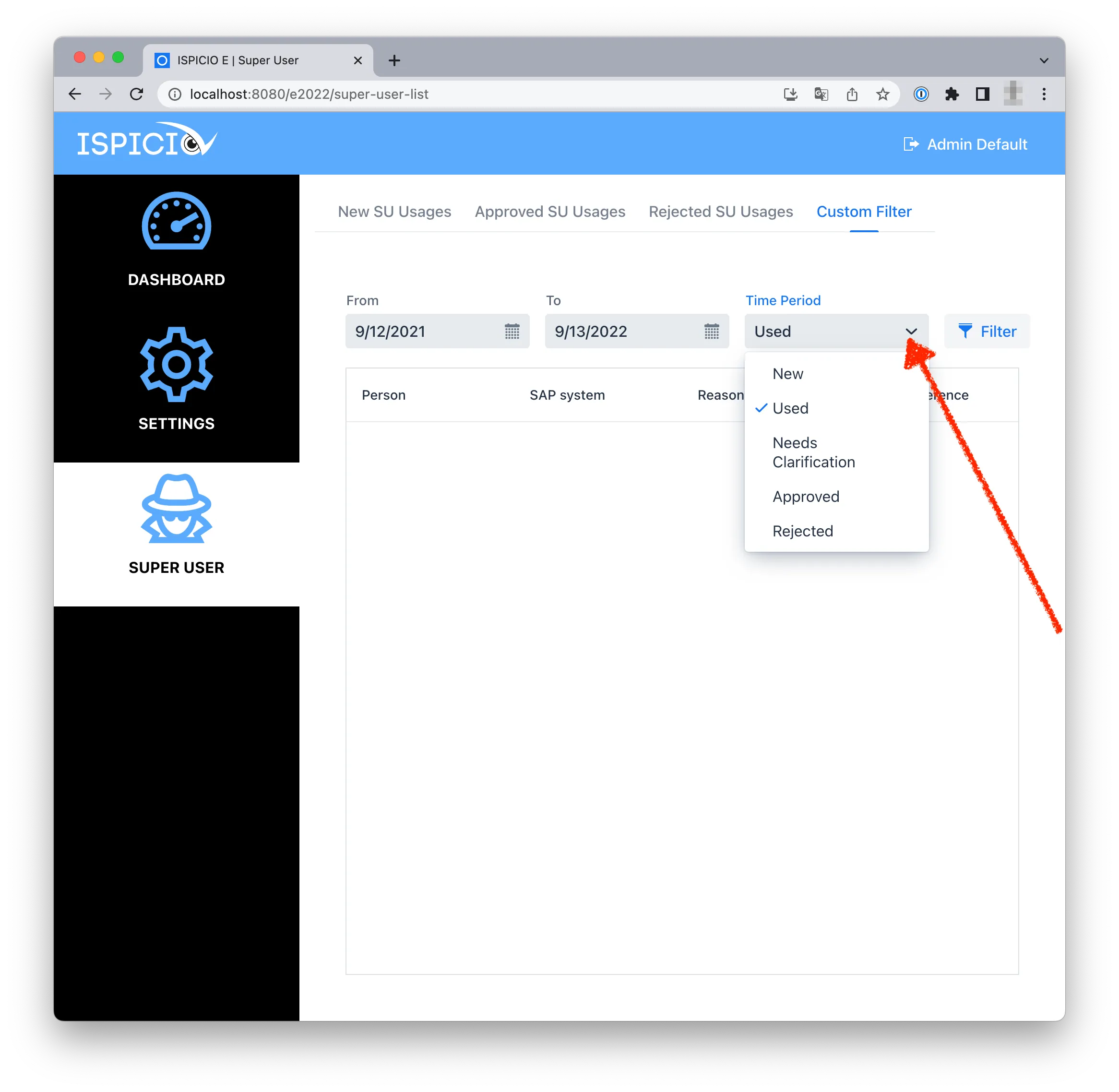
Narrow down the search: set the period with From and To and select the status in the list next to them (New, Used, Needs Clarification, Approved or Rejected). In the user interface, this list is labeled Time Period. Then click Filter.
Approved and rejected sessions are also listed on the Approved SU Usages and Rejected SU Usages tabs.
View a single session
-
Click an entry in the list.
-
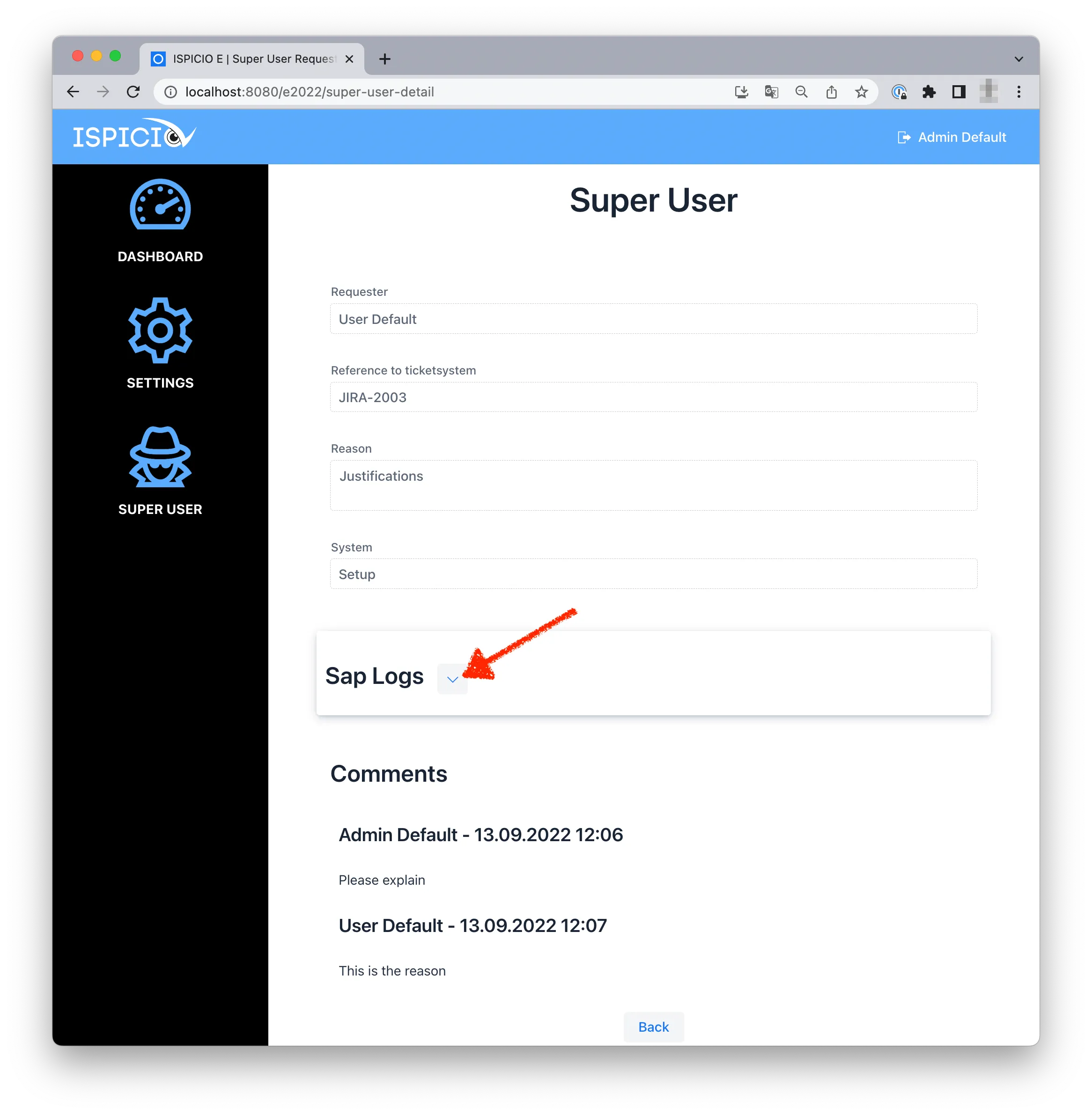
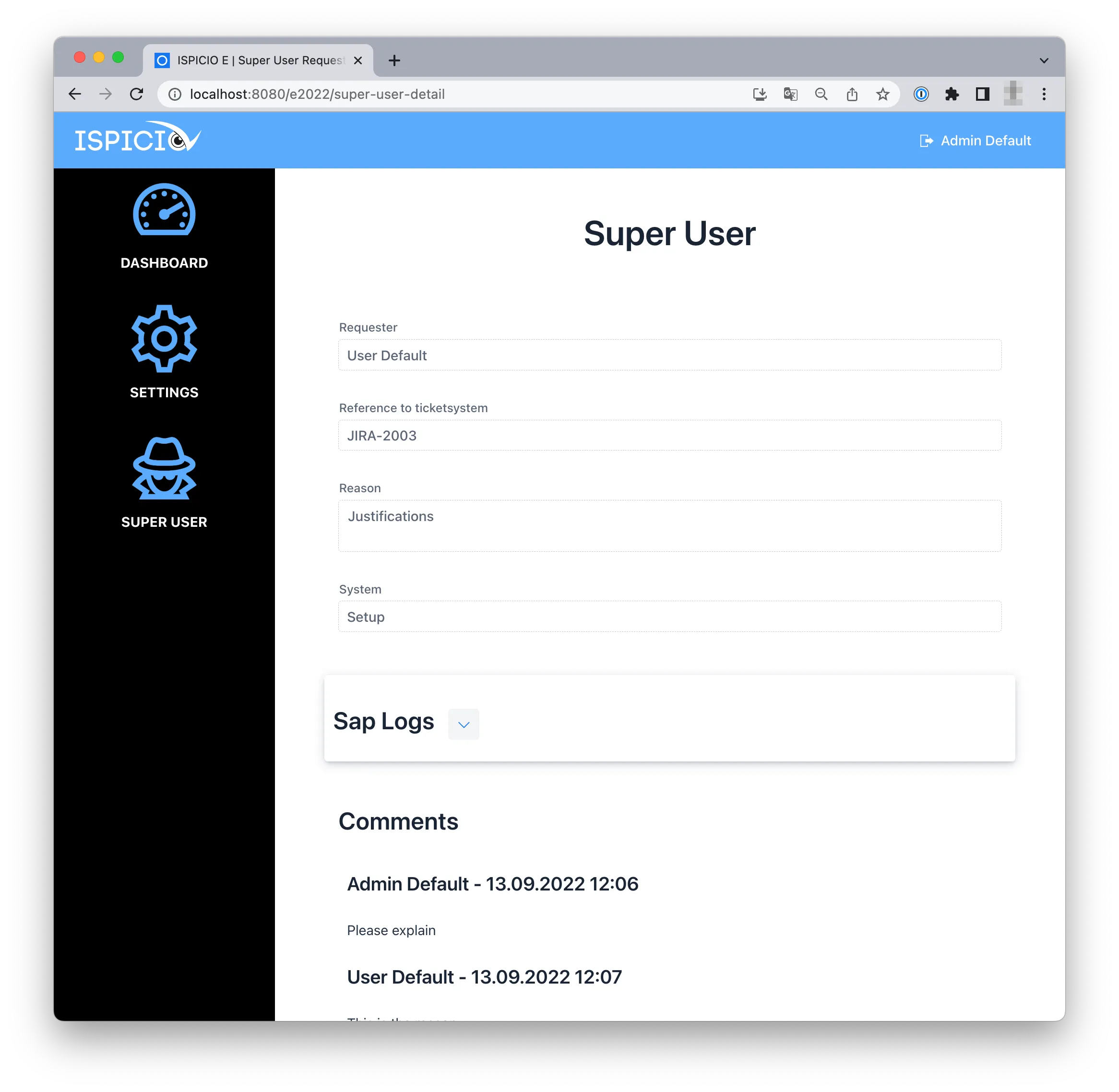
ISPICIO_E shows all details of the session, including the comments.
-
Click the arrow next to Sap Logs to display the entries of the Security Audit Log.